> ## Documentation Index
> Fetch the complete documentation index at: https://docs.labelbox.com/llms.txt
> Use this file to discover all available pages before exploring further.
# Cluster view
> Cluster view displays datarows as a projection of data points grouped by common characteristics.
### Deprecated feature
**Cluster view** has been disabled and is no longer available.
**Cluster view** is helpful for:
* Exploring relationships between data rows
* Identifying edge cases and outliers
* Selecting for pre-labeling or human review
* Quickly classifying large datasets in bulk
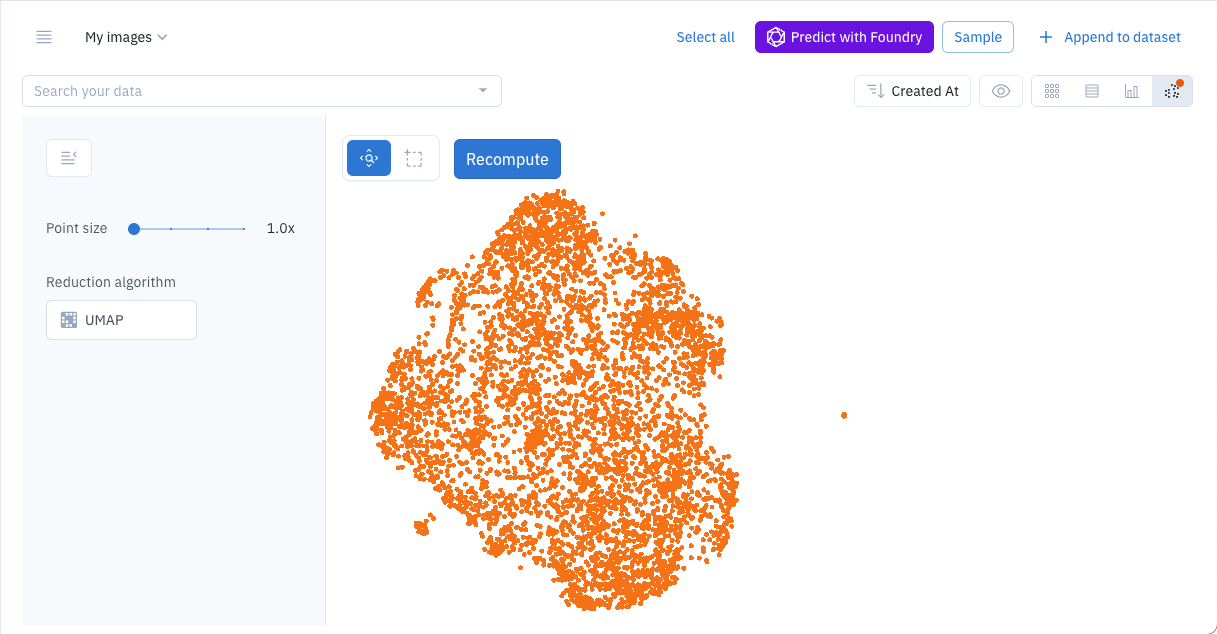 **Cluster view** is a projection view of a dataset, one that groups assets by common characteristics. Like any other view, you can select data rows and use the **Selection menu** to perform tasks.
At this time, **Cluster view** is supported for image, text, and document datasets with more than 100 data rows. By default, **Cluster view** is limited to 500,000 data rows. (Contact Support if you're interested in larger datasets).
## Display cluster view
To display cluster view:
1. Use **Catalog** to select a dataset.
2. In the View control panel, select the **Cluster view (beta)** button.
**Cluster view** is a projection view of a dataset, one that groups assets by common characteristics. Like any other view, you can select data rows and use the **Selection menu** to perform tasks.
At this time, **Cluster view** is supported for image, text, and document datasets with more than 100 data rows. By default, **Cluster view** is limited to 500,000 data rows. (Contact Support if you're interested in larger datasets).
## Display cluster view
To display cluster view:
1. Use **Catalog** to select a dataset.
2. In the View control panel, select the **Cluster view (beta)** button.
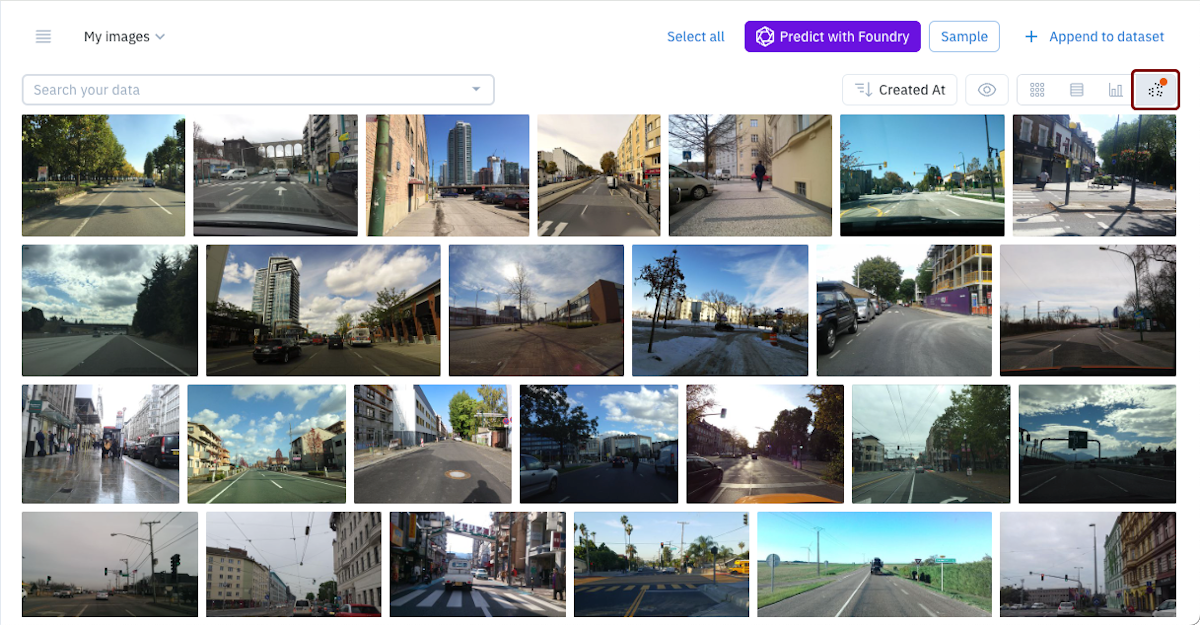 3. If prompted select the **Generate cluster view** button to generate the cluster view.
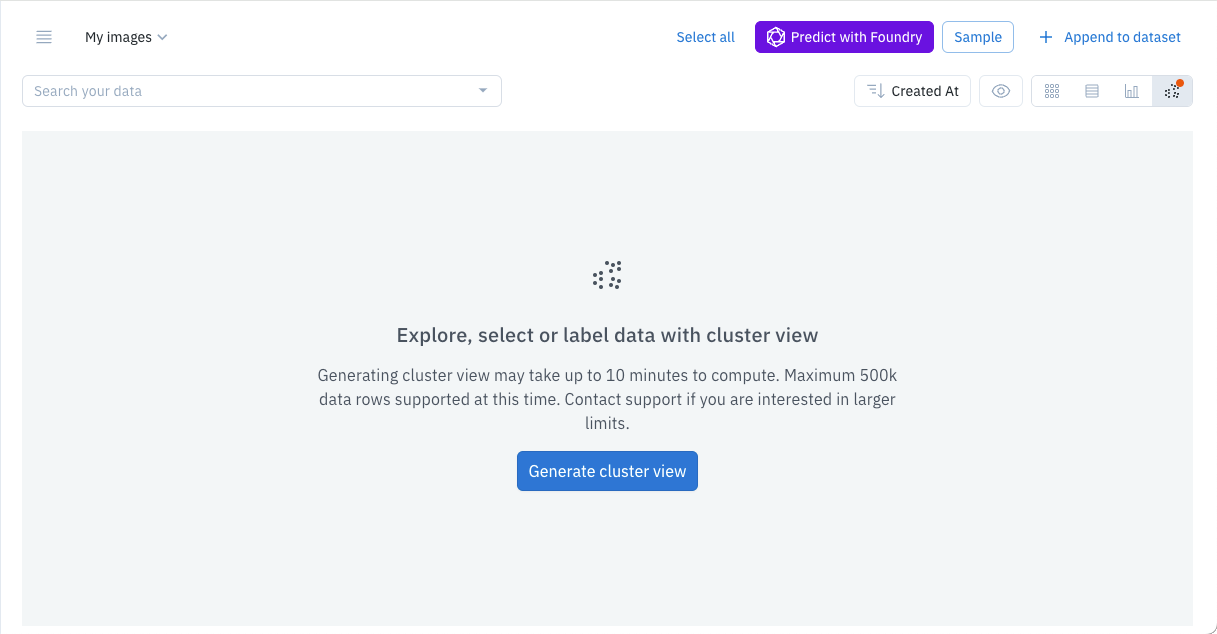 Based on the size of the dataset and its assets, the initial cluster view can take several minutes to generate.
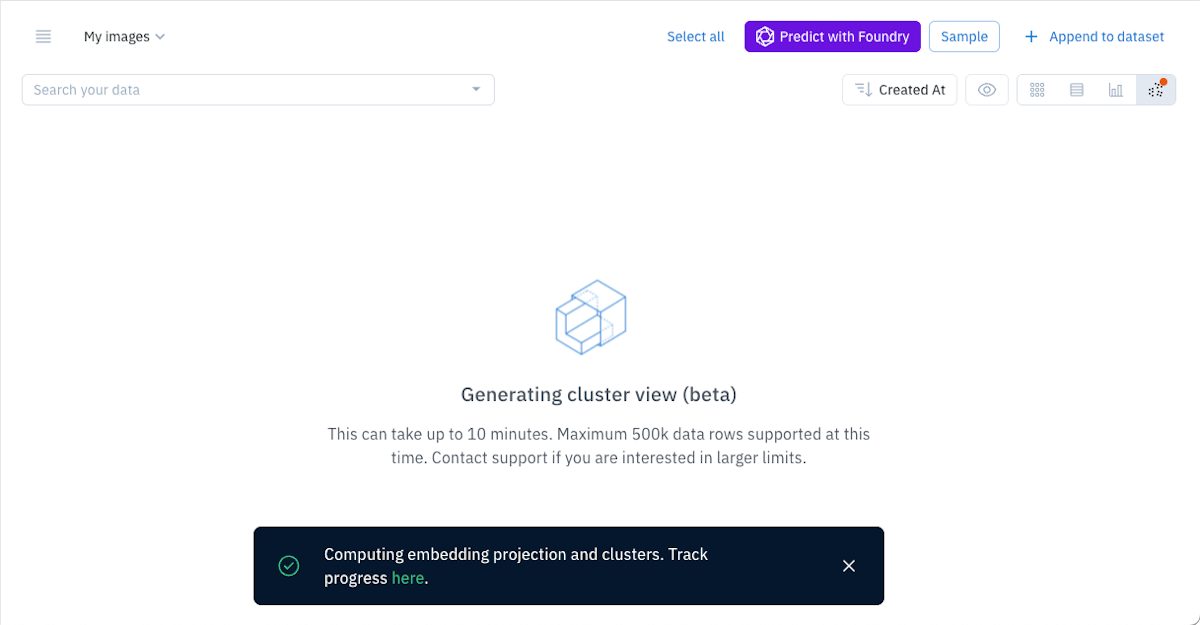 You can follow progress in the Notification Center.
## Manage cluster view
You can do several things to manage a cluster view.
### Set zoom level
To change the cluster view zoom level, select the **Zoom** button and then use your system's zoom gestures.
You can follow progress in the Notification Center.
## Manage cluster view
You can do several things to manage a cluster view.
### Set zoom level
To change the cluster view zoom level, select the **Zoom** button and then use your system's zoom gestures.
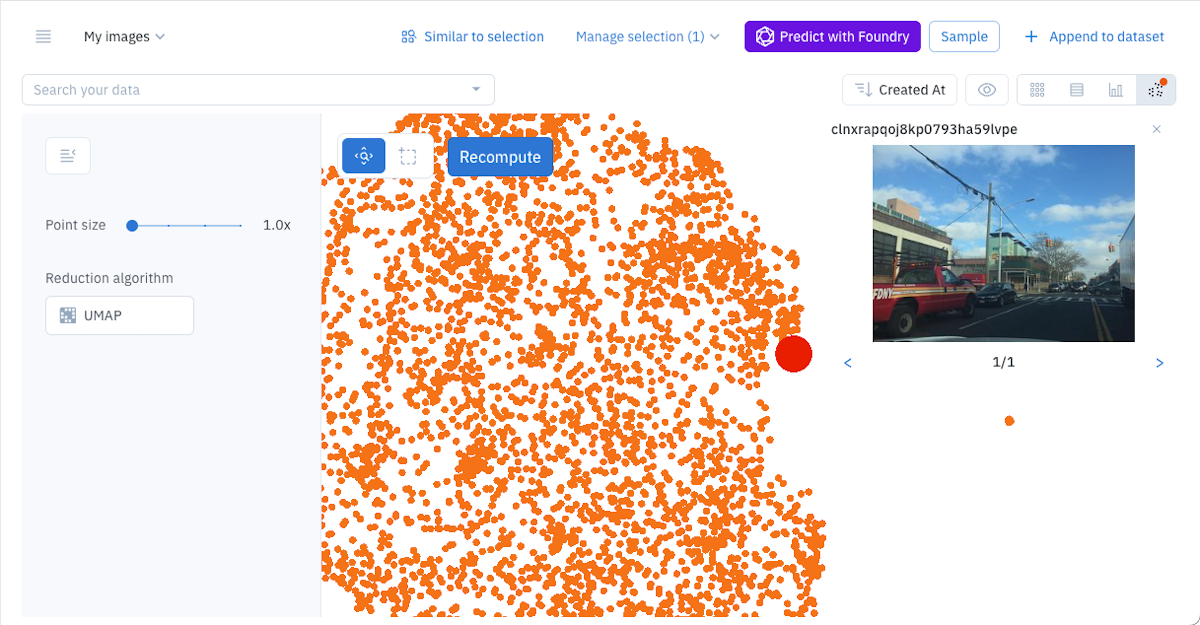
 ### Select an asset
To select an asset, simply click it. When you do this, a preview appears.
### Select an asset
To select an asset, simply click it. When you do this, a preview appears.
 ### Select multiple assets
To select multiple assets in Cluster view:
1. Select the Multi-select button
### Select multiple assets
To select multiple assets in Cluster view:
1. Select the Multi-select button
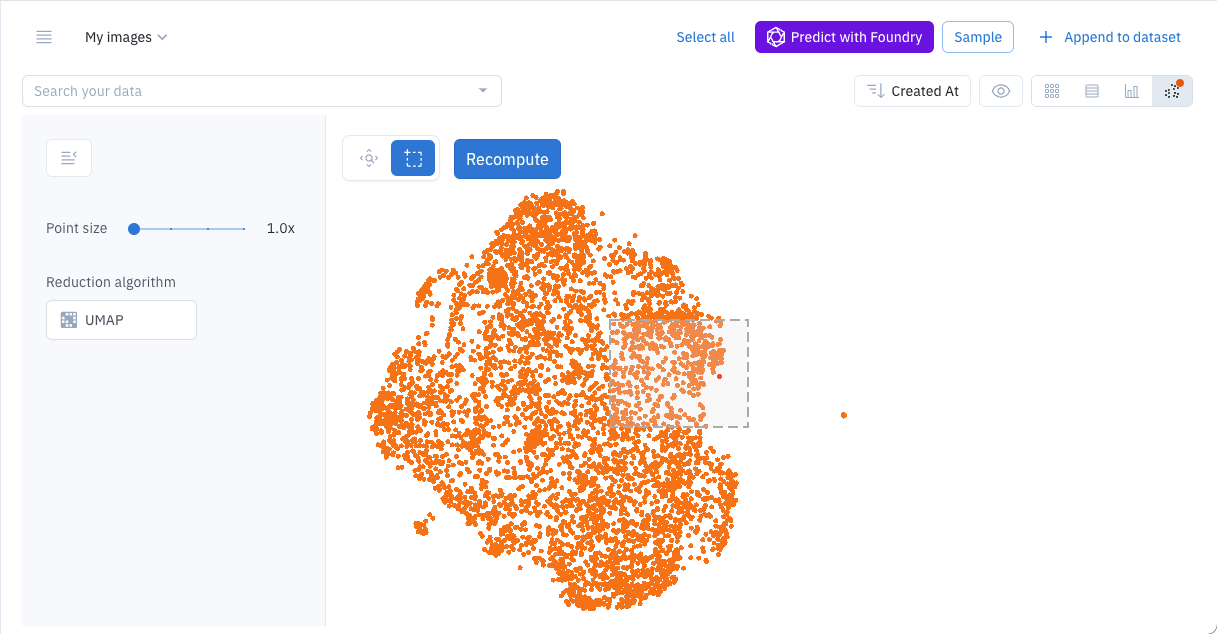
 2. Hold the left mouse button to drag a selection rectangle around the assets to select.
 When you do this, selected assets appear as blue dots and a preview window appears.
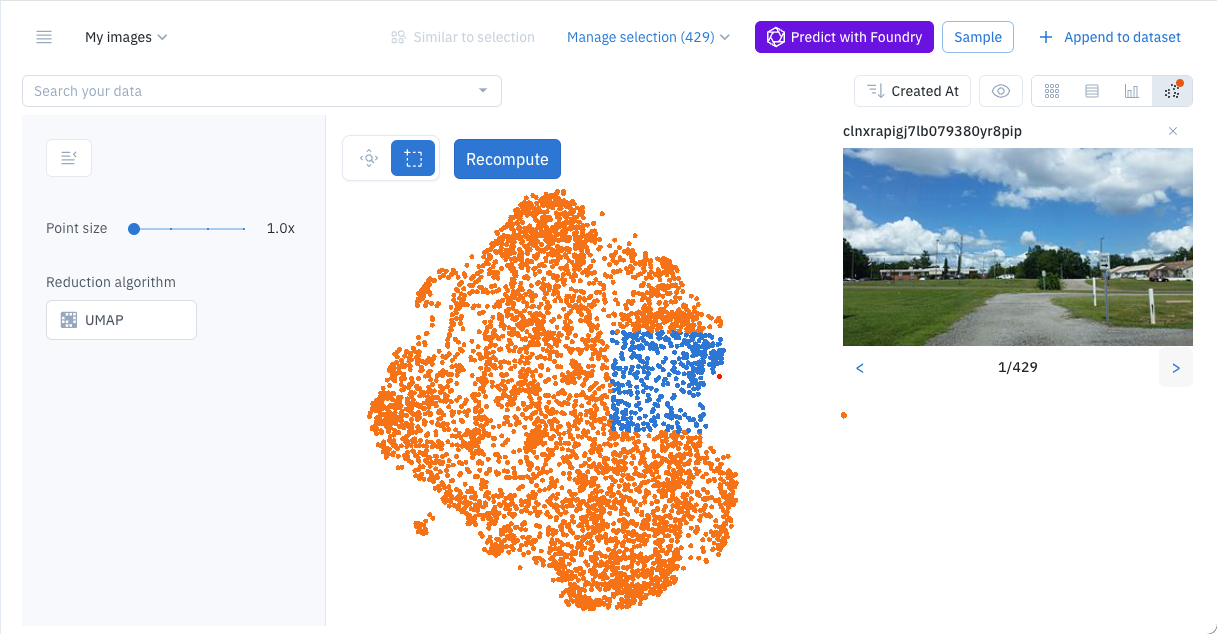 The arrow buttons on the preview window cycle between selected assets. The preview window's Close button also clears the selection.
When one or more assets are selected, you can use the **Catalog** [Selection menu](/docs/manage-selections) to manage the selected assets.
### Recompute cluster view
Use the **Recompute** button to update the cluster view.
The arrow buttons on the preview window cycle between selected assets. The preview window's Close button also clears the selection.
When one or more assets are selected, you can use the **Catalog** [Selection menu](/docs/manage-selections) to manage the selected assets.
### Recompute cluster view
Use the **Recompute** button to update the cluster view.
 ### Cluster view settings
Cluster view settings control how cluster rendering.
### Cluster view settings
Cluster view settings control how cluster rendering.
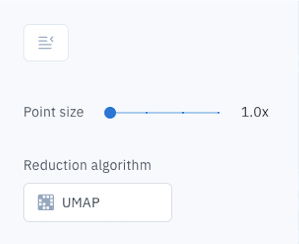 The cluster view panel includes the following settings:
* **Point size** controls the size of the asset points displayed by cluster view. You can choose between 1.0x, 4.0x, 8.0x and 20x.
* **Reduction algorithm** controls how the cluster is calculated and includes the following settings:
* [TSNE](https://en.wikipedia.org/wiki/T-distributed_stochastic_neighbor_embedding) (*t-distributed stochastic neighbor embedding* or *t-SNE*)
* [UMAP](https://en.wikipedia.org/wiki/Nonlinear_dimensionality_reduction#Uniform_manifold_approximation_and_projection) (uniform manifold approximation and projection)
Use the **Cluster view settings** button to hide or show the setting panel.
The cluster view panel includes the following settings:
* **Point size** controls the size of the asset points displayed by cluster view. You can choose between 1.0x, 4.0x, 8.0x and 20x.
* **Reduction algorithm** controls how the cluster is calculated and includes the following settings:
* [TSNE](https://en.wikipedia.org/wiki/T-distributed_stochastic_neighbor_embedding) (*t-distributed stochastic neighbor embedding* or *t-SNE*)
* [UMAP](https://en.wikipedia.org/wiki/Nonlinear_dimensionality_reduction#Uniform_manifold_approximation_and_projection) (uniform manifold approximation and projection)
Use the **Cluster view settings** button to hide or show the setting panel.
 ## Dataset requirements
Cluster view is currently available for image, text, and document datasets.
Cluster view currently supports datasets with a minimum of 100 datarows and a maximum of 500,000 datarows. (Contact Support for help with larger datasets.)
## Dataset requirements
Cluster view is currently available for image, text, and document datasets.
Cluster view currently supports datasets with a minimum of 100 datarows and a maximum of 500,000 datarows. (Contact Support for help with larger datasets.)