> ## Documentation Index
> Fetch the complete documentation index at: https://docs.labelbox.com/llms.txt
> Use this file to discover all available pages before exploring further.
# Configure CORS
> Instructions for configuring Cross-Origin Resource Sharing (CORS) for AWS S3, GCS, and Microsoft Azure.
This guide explains what a CORS policy is and how to configure it correctly in AWS, GCP, and Azure. Completing this step ensures that your data assets will render correctly within the Labelbox application.
### What is CORS and why is it necessary?
* **The Problem:** Modern web browsers enforce a "Same-Origin Policy" to protect you from malicious websites. This policy prevents a web page (like the Labelbox app at `https://app.labelbox.com`) from making requests to a different domain (like your storage bucket at `your-bucket.s3.amazonaws.com`).
* **The Solution:** A CORS policy is a small configuration file you add to your storage bucket. It acts as a permission slip, telling the browser, "It's okay to allow requests from `https://app.labelbox.com` to access files in this bucket."
When configuring CORS for your cloud storage bucket, you will need to include both of these Labelbox origins: `https://app.labelbox.com` and `https://editor.labelbox.com`.
## AWS S3
1. Navigate to your S3 bucket in the AWS Console.
2. Click the bucket name.
3. Go to the **Permissions** tab.
4. Scroll to the **Cross-origin resource sharing (CORS)** section, click **Edit**.
5. Paste the provided policy into the editor and save.
```json JSON theme={null}
[
{
"AllowedHeaders": [
"*"
],
"AllowedMethods": [
"GET"
],
"AllowedOrigins": [
"https://app.labelbox.com",
"https://editor.labelbox.com"
],
"ExposeHeaders": []
}
]
```
7. For more details on setting up CORS for your AWS S3 bucket, see [these AWS docs](https://docs.aws.amazon.com/AmazonS3/latest/userguide/enabling-cors-examples.html).
## Google Cloud Storage (GCS)
The configuration must allow requests from both `https://app.labelbox.com` and `https://editor.labelbox.com` to ensure data loads correctly across the entire platform.
You can set this policy using one of the two methods below.
### Option 1: Using the gcloud CLI on your local machine
This method is ideal if you have the `gcloud` command-line tool installed on your computer.
1. Create a new file on your computer named `cors-config.json`.
2. Copy and paste the following JSON content into the file. Note: The `"*"` for `responseHeader` allows all necessary headers and is recommended for robust compatibility.
```json theme={null}
[ { "origin": ["https://app.labelbox.com", "https://editor.labelbox.com"], "method": ["GET"], "responseHeader": ["*"], "maxAgeSeconds": 3600 } ]
```
3. Open your terminal or command prompt and run the following command. Be sure to replace `[BUCKET_NAME]` with the actual name of your GCS bucket.
```shellscript theme={null}
gcloud storage buckets update gs://[BUCKET_NAME] --cors-file=cors-config.json
```
### Option 2: Using the Google Cloud Shell
This method is convenient if you prefer to work directly within the Google Cloud Console without creating local files.
1. Open the [Google Cloud Shell](https://shell.cloud.google.com/ "https://shell.cloud.google.com/") from your GCP console.
2. Run the following command in the Cloud Shell terminal. This command creates the `cors-config.json` file and writes the correct configuration to it in a single step.
```shellscript theme={null}
echo '[{"origin": ["https://app.labelbox.com", "https://editor.labelbox.com"], "method": ["GET"], "responseHeader": ["*"], "maxAgeSeconds": 3600}]' > cors-config.json
```
3. Next, run the command below to apply the configuration to your bucket. Remember to replace `[BUCKET_NAME]` with your bucket's name.
```shellscript theme={null}
gcloud storage buckets update gs://[BUCKET_NAME] --cors-file=cors-config.json
```
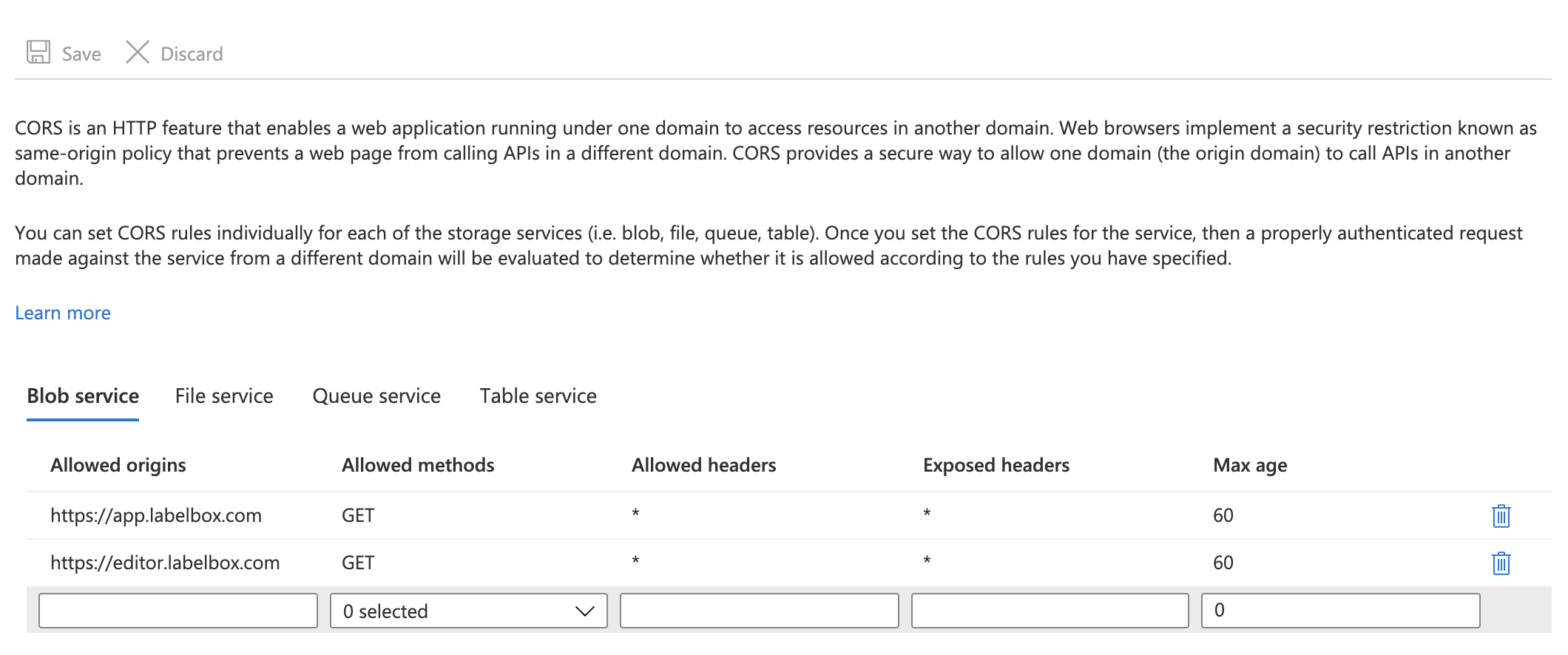
## Microsoft Azure
1. Navigate to the your Storage Account in your Azure Portal.
2. Under **Settings**, find **Resource sharing (CORS)**.
3. Select the **Blob Service** tab.
4. Fill in the fields: Allowed origins (`https'//app.labelbox.com` and `https://editor.labelbox.com`). Allowed methods (`GET`), etc. and save.
 ## Troubleshooting
| Error message | Troubleshooting |
| ------------------------------------------ | ------------------------------------------------------------------------------------------------------------------------------------------------------------------------------------------------------------------------------------------------------------------------------------------------------------------------------------------------------------------------------------------------------------------------------------------------------------------------------------------------------------------------------------------------------------------------------------------------------------------------ |
| Unable to detect proper CORS configuration | Ensure your cloud storage bucket has CORS configured with the following origins: `https://app.labelbox.com` and `https://editor.labelbox.com`. For more troubleshooting help, see: - [AWS troubleshooting CORS](https://docs.aws.amazon.com/AmazonS3/latest/userguide/cors-troubleshooting.html) - [GCS troubleshooting CORS requests](https://cloud.google.com/storage/docs/configuring-cors#troubleshooting) - [Cross-Origin Resource Sharing (CORS) support for Azure Storage](https://docs.microsoft.com/en-us/rest/api/storageservices/cross-origin-resource-sharing--cors--support-for-the-azure-storage-services) |
## Troubleshooting
| Error message | Troubleshooting |
| ------------------------------------------ | ------------------------------------------------------------------------------------------------------------------------------------------------------------------------------------------------------------------------------------------------------------------------------------------------------------------------------------------------------------------------------------------------------------------------------------------------------------------------------------------------------------------------------------------------------------------------------------------------------------------------ |
| Unable to detect proper CORS configuration | Ensure your cloud storage bucket has CORS configured with the following origins: `https://app.labelbox.com` and `https://editor.labelbox.com`. For more troubleshooting help, see: - [AWS troubleshooting CORS](https://docs.aws.amazon.com/AmazonS3/latest/userguide/cors-troubleshooting.html) - [GCS troubleshooting CORS requests](https://cloud.google.com/storage/docs/configuring-cors#troubleshooting) - [Cross-Origin Resource Sharing (CORS) support for Azure Storage](https://docs.microsoft.com/en-us/rest/api/storageservices/cross-origin-resource-sharing--cors--support-for-the-azure-storage-services) |