> ## Documentation Index
> Fetch the complete documentation index at: https://docs.labelbox.com/llms.txt
> Use this file to discover all available pages before exploring further.
# Manage your project's data rows
> The Data Rows tab enables you to easily view, filter, and manage the data rows in your project.
The **Data rows** tab in your project dashboard is your central hub for viewing, filtering, and managing all the data rows within a specific project. Whether a data row is labeled, waiting in the queue, or undergoing review, you can find it here.
## Filtering your data rows
Each data row displays key information, including how much time has been spent on labeling and review, which dataset it belongs to, and whether there are any open issues.
There are several ways you can filter your data.
### Use search filters
To find specific data rows, you can use a powerful and flexible filtering system. Click on **Search your data** to get started. You can combine multiple filters using AND/OR conditions to create highly specific queries.
For example, you could search for all data rows in a specific `batch` AND that have been `reworked by` a particular labeler. This allows you to precisely target the data you need.
 Here are the available filters:
| Filter | What it does |
| ------------------- | ------------------------------------------------------------------------------------------------------------------------------------------------------------------------------------------------------------------------------------------------------------------------------------------------------------------------------ |
| Dataset | Find data rows belonging to a specific dataset. |
| Metadata | Filter data rows based on their metadata fields and values. |
| Media attribute | Query data rows based on attributes of the asset itself (e.g., image height or video duration). |
| Batch | Find data rows that are part of a particular batch. |
| Data row | Search for data rows by their ID, Global Key, creation date, or last activity date. |
| Find text | Perform a text search within your data rows. |
| Natural language | Use natural language to search for data rows (e.g., "show me all the pictures of cats"). |
| Task | Find data rows that are currently in a specific workflow task. |
| Issue | Filter data rows based on any issues associated with their labels. |
| Label actions | Find data rows based on actions taken on their labels, such as who labeled them, when they were labeled, or if they were skipped. **Note:** Bulk moving a data row to a different step is not considered a review or rework, so it won't appear in filters like `Reworked at`, `Reworked by`, `Reviewed by`, or `Reviewed at`. |
| Annotation | Filter data rows based on the number of annotations on their labels. |
| Benchmark agreement | Find data rows based on benchmark agreement metrics. |
| Consensus agreement | Find data rows based on consensus agreement metrics. |
### Filter data rows by status
The status of a data row tells you where it is in the labeling and review process. The following statuses are available by default for every project.
You can see a count of data rows for each status on the left panel. Clicking on a status will filter the table to show only the data rows with that status.
| Status | What it means |
| :-------- | :------------------------------------------------------------------------------------------------------------------------------------------------------------------------------------------------------------------------------------- |
| To label | These data rows need to be labeled. For a standard data row, this means it has no labels. For a consensus or benchmark data row, this means it has fewer than the required number of labels (e.g., it has two labels but needs three). |
| In review | These data rows are currently in a review task within the workflow. |
| In rework | These data rows have been sent back for corrections and are in the rework task. |
| Done | These data rows have all the required labels and have successfully passed all review steps in the workflow. |
## Updating your data rows
You have several options to update your data rows in bulk or at the individual level
### Task browser: Update individual data rows
To view or edit the labels on a single data row, click on the data row in the table. This will open the **Task browser**.
From here, you can:
* **Edit the label**: Click the **Edit** button to create or edit annotations. Press **Save** to save your changes.
* **View all labels (for consensus or benchmark)**: If you are using consensus or benchmarks, you can view all the different labels created for that data row. Use the `>` icon in the left-side panel to see all labels, view their IDs, and select a "winner" label.
Click on the options menu next to a data row to access more actions you can take at the data row level.
Here are the available filters:
| Filter | What it does |
| ------------------- | ------------------------------------------------------------------------------------------------------------------------------------------------------------------------------------------------------------------------------------------------------------------------------------------------------------------------------ |
| Dataset | Find data rows belonging to a specific dataset. |
| Metadata | Filter data rows based on their metadata fields and values. |
| Media attribute | Query data rows based on attributes of the asset itself (e.g., image height or video duration). |
| Batch | Find data rows that are part of a particular batch. |
| Data row | Search for data rows by their ID, Global Key, creation date, or last activity date. |
| Find text | Perform a text search within your data rows. |
| Natural language | Use natural language to search for data rows (e.g., "show me all the pictures of cats"). |
| Task | Find data rows that are currently in a specific workflow task. |
| Issue | Filter data rows based on any issues associated with their labels. |
| Label actions | Find data rows based on actions taken on their labels, such as who labeled them, when they were labeled, or if they were skipped. **Note:** Bulk moving a data row to a different step is not considered a review or rework, so it won't appear in filters like `Reworked at`, `Reworked by`, `Reviewed by`, or `Reviewed at`. |
| Annotation | Filter data rows based on the number of annotations on their labels. |
| Benchmark agreement | Find data rows based on benchmark agreement metrics. |
| Consensus agreement | Find data rows based on consensus agreement metrics. |
### Filter data rows by status
The status of a data row tells you where it is in the labeling and review process. The following statuses are available by default for every project.
You can see a count of data rows for each status on the left panel. Clicking on a status will filter the table to show only the data rows with that status.
| Status | What it means |
| :-------- | :------------------------------------------------------------------------------------------------------------------------------------------------------------------------------------------------------------------------------------- |
| To label | These data rows need to be labeled. For a standard data row, this means it has no labels. For a consensus or benchmark data row, this means it has fewer than the required number of labels (e.g., it has two labels but needs three). |
| In review | These data rows are currently in a review task within the workflow. |
| In rework | These data rows have been sent back for corrections and are in the rework task. |
| Done | These data rows have all the required labels and have successfully passed all review steps in the workflow. |
## Updating your data rows
You have several options to update your data rows in bulk or at the individual level
### Task browser: Update individual data rows
To view or edit the labels on a single data row, click on the data row in the table. This will open the **Task browser**.
From here, you can:
* **Edit the label**: Click the **Edit** button to create or edit annotations. Press **Save** to save your changes.
* **View all labels (for consensus or benchmark)**: If you are using consensus or benchmarks, you can view all the different labels created for that data row. Use the `>` icon in the left-side panel to see all labels, view their IDs, and select a "winner" label.
Click on the options menu next to a data row to access more actions you can take at the data row level.
 From this menu, you can:
* **Copy link:** Copy the link to the data row. You can send the link to the data row to other members in your organization.
* **Delete labels & requeue:** Remove all existing labels from a selected group of data rows and then send those data rows back to the beginning of the labeling queue to be worked on again. You can
* **Move to step:** Choose to move the selected data row to **Initial review task**, **Rework**, or **Done**.
* **Add as benchmark:** Select this label as a winning benchmark label.
### Bulk update multiple data rows
If you need to update the configurations for many data rows at one time, you can use the Bulk actions feature.
From this menu, you can:
* **Copy link:** Copy the link to the data row. You can send the link to the data row to other members in your organization.
* **Delete labels & requeue:** Remove all existing labels from a selected group of data rows and then send those data rows back to the beginning of the labeling queue to be worked on again. You can
* **Move to step:** Choose to move the selected data row to **Initial review task**, **Rework**, or **Done**.
* **Add as benchmark:** Select this label as a winning benchmark label.
### Bulk update multiple data rows
If you need to update the configurations for many data rows at one time, you can use the Bulk actions feature.
 Select multiple data rows to perform the following actions in bulk:
| Action | What it does |
| ------------------------------- | ------------------------------------------------------------------------------------------------------------------------------------------------------------------------------------------------------------------------------------------------------------------------------------------ |
| **Change priority** | Assign a new priority to the selected data rows to change their order in the labeling queue. |
| **Delete and requeue** | Allows you to remove all existing labels from a selected group of data rows and then send those data rows back to the beginning of the labeling queue to be worked on again. You can select to preserve the existing labels or delete them. |
| **Export data** | Export the selected data rows and their labels. |
| **Hide/unhide from labelers** | Control which data rows are visible to labelers. Hidden data rows will have an "Authorized only" tag. Admins can still view the row details, but labelers will only be able to copy the external ID and will see an "Unauthorized to view this data row" message if they try to access it. |
| **Move to step** | Choose to move the selected data rows to: **Initial review task**, **Rework**, or **Done**. |
| **Assign labels as benchmarks** | Designate the labels on the selected data rows as benchmark reference labels. |
Bulk **Move to step** actions are not considered a review or rework. Therefore, these actions will not show up when applying **Reworked at**, **Reworked by**, **Reviewed by**, or **Reviewed at** filters.
## Updating your batches
From the Data Rows tab, you can also update the batches of data rows in your project.
### View and update batches
Click on **Batches** → **View batches** to view and update all the existing batches in your project. From here, you can:
Select multiple data rows to perform the following actions in bulk:
| Action | What it does |
| ------------------------------- | ------------------------------------------------------------------------------------------------------------------------------------------------------------------------------------------------------------------------------------------------------------------------------------------ |
| **Change priority** | Assign a new priority to the selected data rows to change their order in the labeling queue. |
| **Delete and requeue** | Allows you to remove all existing labels from a selected group of data rows and then send those data rows back to the beginning of the labeling queue to be worked on again. You can select to preserve the existing labels or delete them. |
| **Export data** | Export the selected data rows and their labels. |
| **Hide/unhide from labelers** | Control which data rows are visible to labelers. Hidden data rows will have an "Authorized only" tag. Admins can still view the row details, but labelers will only be able to copy the external ID and will see an "Unauthorized to view this data row" message if they try to access it. |
| **Move to step** | Choose to move the selected data rows to: **Initial review task**, **Rework**, or **Done**. |
| **Assign labels as benchmarks** | Designate the labels on the selected data rows as benchmark reference labels. |
Bulk **Move to step** actions are not considered a review or rework. Therefore, these actions will not show up when applying **Reworked at**, **Reworked by**, **Reviewed by**, or **Reviewed at** filters.
## Updating your batches
From the Data Rows tab, you can also update the batches of data rows in your project.
### View and update batches
Click on **Batches** → **View batches** to view and update all the existing batches in your project. From here, you can:
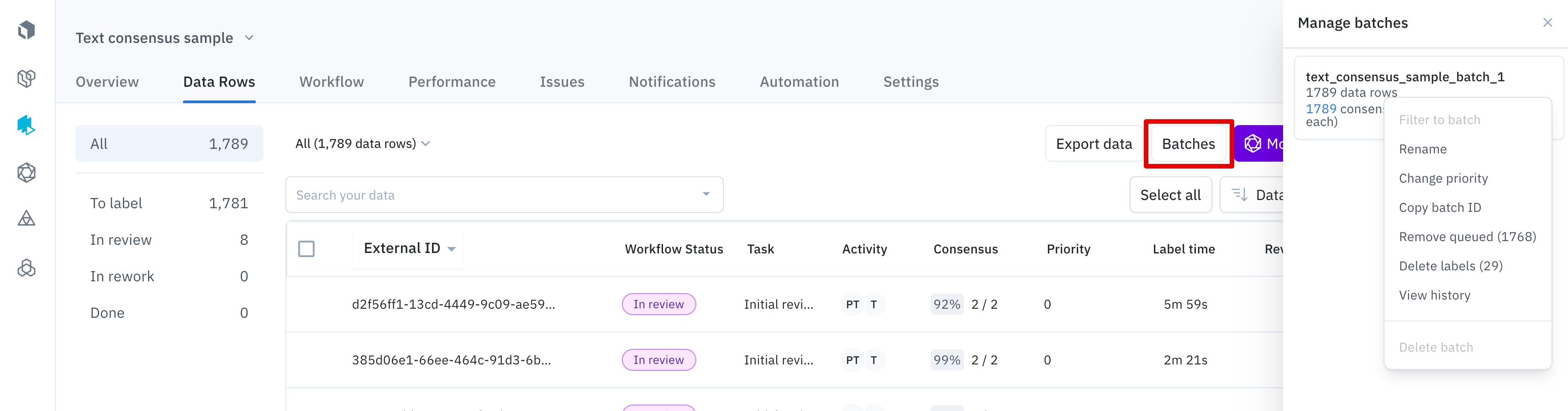 * **Rename the batch**.
* **Copy batch ID**.
* **Change priority**: When you initially create the batch, you have the option to select the data row priority (value between 1 - 5). Leaving it as-is will default to batch value to 5. From the **View batches** panel you can update the priority for the batch.
* **Remove queued data rows**: This will remove any data rows from the batch that have not yet been labeled.
* **Delete labels**: This will delete the labels from the data rows in the batch and give you the option to requeue them, either with or without the old label as a template.
* **View history**: See a log of when data rows were added or removed from the batch.
### Add more data to batch
Click on **Batches** → **Add data from Catalog** to select more data rows to add to the batch.
* **Rename the batch**.
* **Copy batch ID**.
* **Change priority**: When you initially create the batch, you have the option to select the data row priority (value between 1 - 5). Leaving it as-is will default to batch value to 5. From the **View batches** panel you can update the priority for the batch.
* **Remove queued data rows**: This will remove any data rows from the batch that have not yet been labeled.
* **Delete labels**: This will delete the labels from the data rows in the batch and give you the option to requeue them, either with or without the old label as a template.
* **View history**: See a log of when data rows were added or removed from the batch.
### Add more data to batch
Click on **Batches** → **Add data from Catalog** to select more data rows to add to the batch.