> ## Documentation Index
> Fetch the complete documentation index at: https://docs.labelbox.com/llms.txt
> Use this file to discover all available pages before exploring further.
# Connect to Discord
> Follow these instructions to set up your Alignerr account with Discord.
As part of our onboarding and communication process, all Alignerrs are required to sign up for Discord. Going forward, Discord will be our official platform for project updates, team communications, and key announcements.
# Refresh membership
If you *already have* an Alignerr Discord account, follow these steps:
1. Log onto [app.alignerr.com](http://app.alignerr.com).
2. Go to **Settings** → **Discord** → click **Refresh Discord membership**.
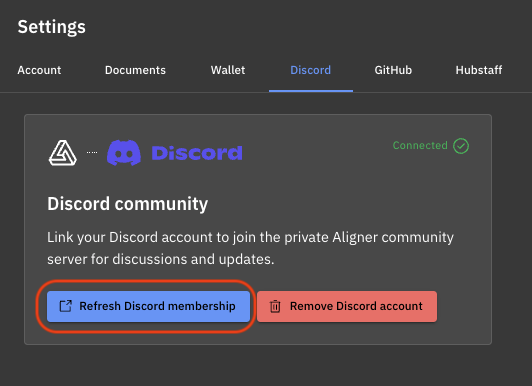 3. Sign into Discord using your existing credentials.
# Create/link account
If you *do not have* an Alignerr Discord account, follow these steps:
1. Log onto [app.alignerr.com](http://app.alignerr.com).
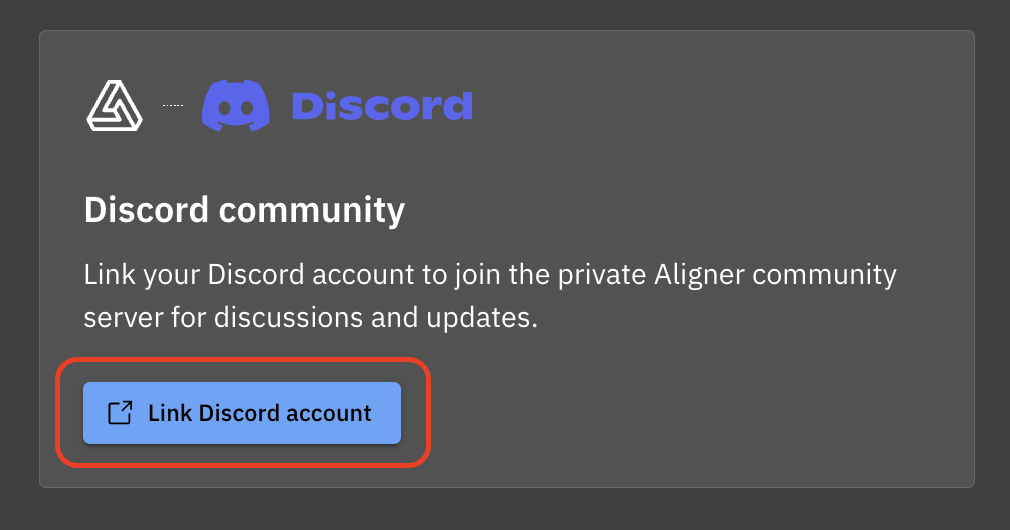
2. Go to **Settings** → **Discord** → select **Link Discord account**.
3. Sign into Discord using your existing credentials.
# Create/link account
If you *do not have* an Alignerr Discord account, follow these steps:
1. Log onto [app.alignerr.com](http://app.alignerr.com).
2. Go to **Settings** → **Discord** → select **Link Discord account**.
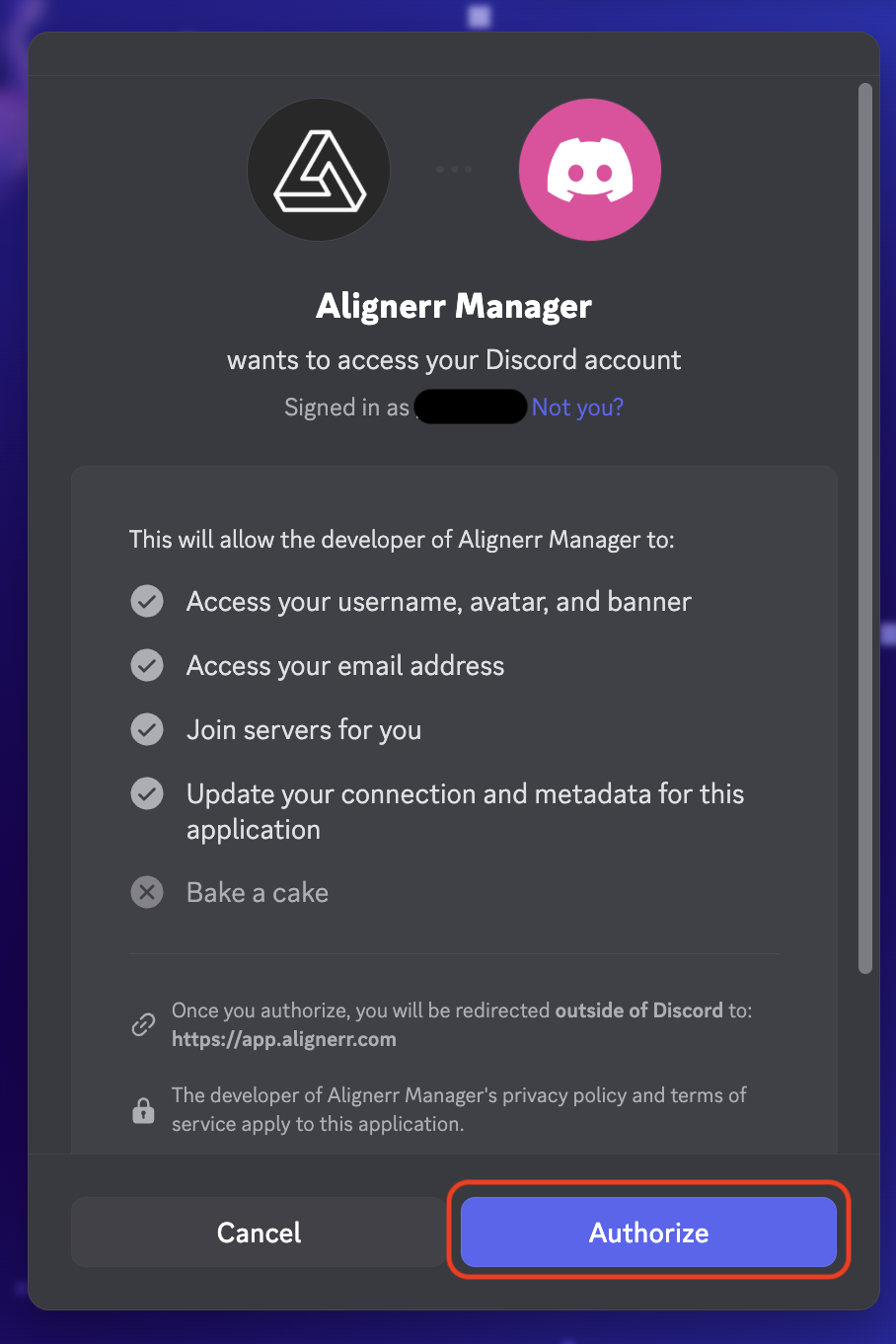
 3. Select **Authorize** in the Alignerr Manager modal.
 4. Create your Discord account using the email address you use for Alignerr projects.
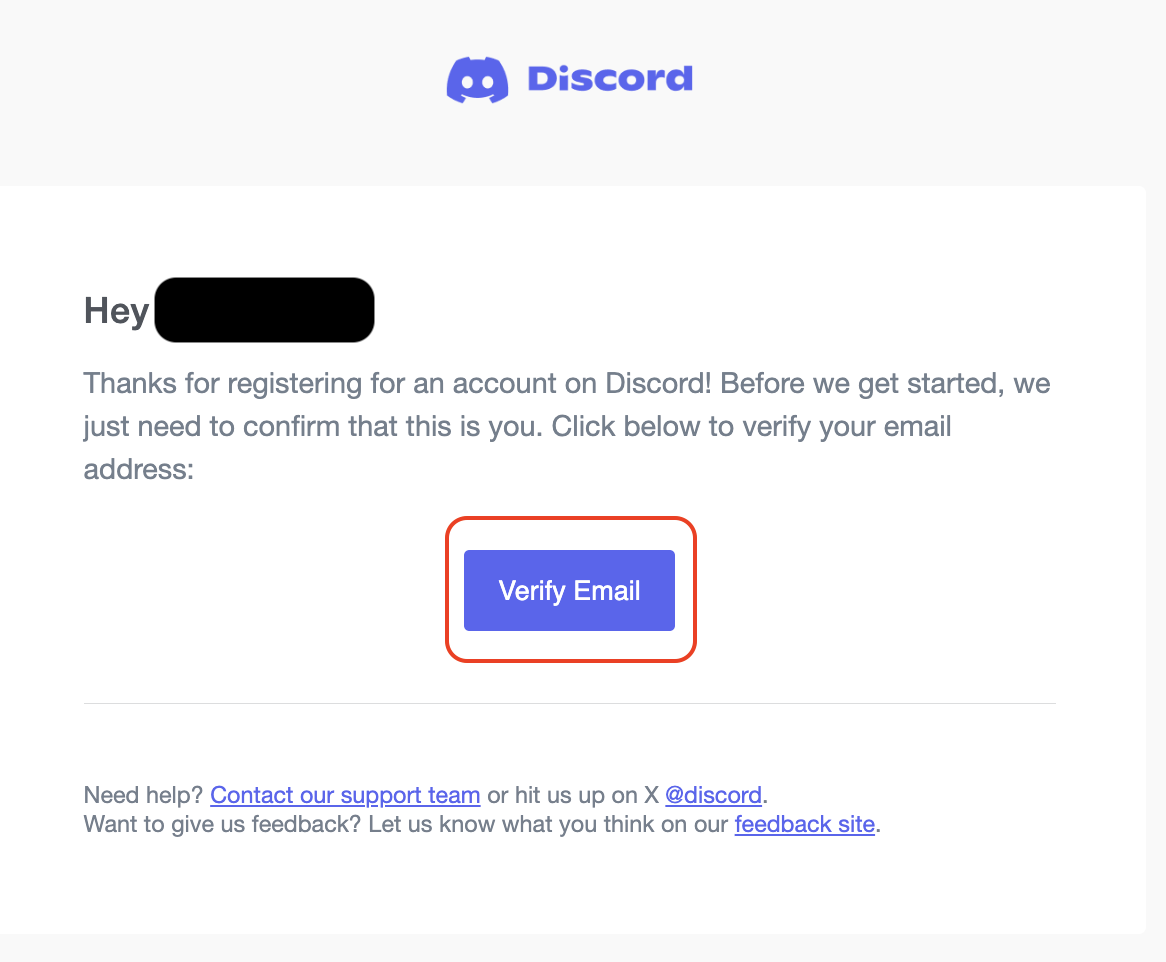
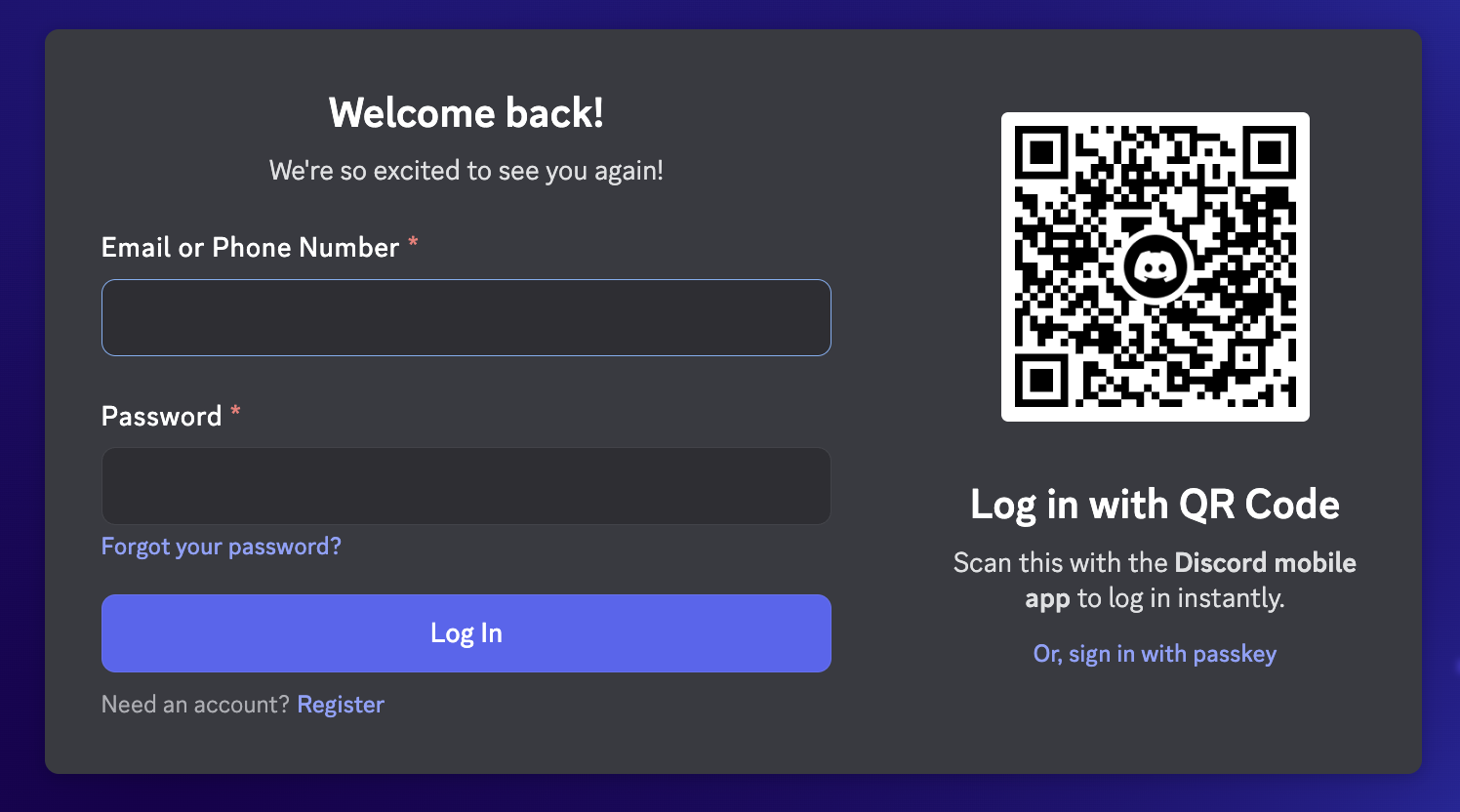 5. You will receive an email from Discord. Open the email and click **Verify email**.
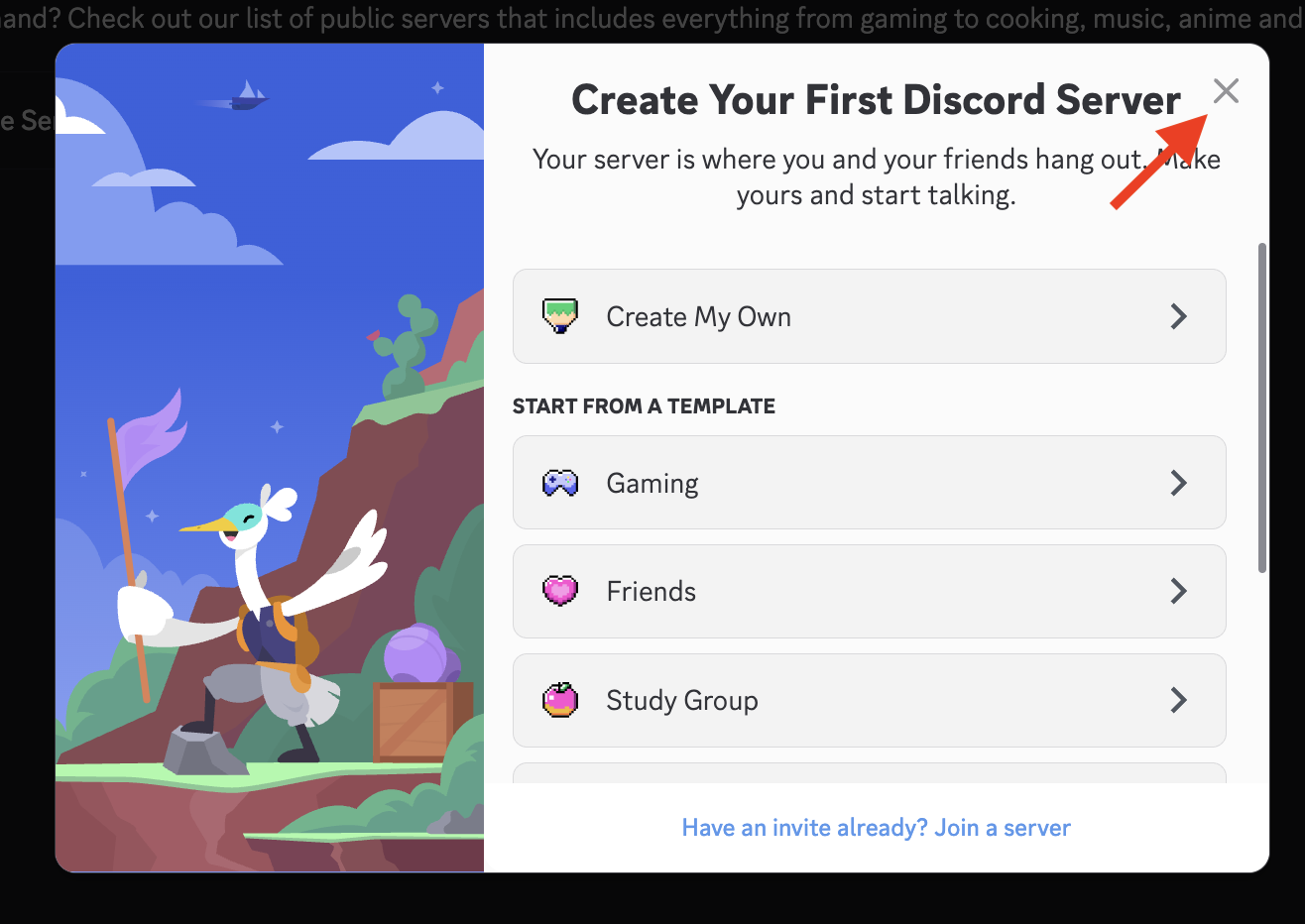
 6. When you enter Discord, you’ll see a modal that says **Create Your First Discord Server**. Exit out of that modal. Do not select anything.