> ## Documentation Index
> Fetch the complete documentation index at: https://docs.labelbox.com/llms.txt
> Use this file to discover all available pages before exploring further.
# Create a Foundry app
> Foundry apps help you automate Foundry workflows. Learn how to create and manage Foundry apps.
As you move from experimenting with models to building production-grade AI systems, you need tools that provide consistency, scalability, and automation. **Foundry Apps** are the key to achieving this in Labelbox.
A Foundry App is more than just a saved model; it's a *saved, reusable, and executable workflow configuration*. It captures the entire logic of a model run—the specific model, the ontology mapping, the confidence threshold, and naming conventions—and packages it into a single, on-demand tool.
## Create a Foundry app
There are two main ways to create a Foundry app in Labelbox:
* **From the Model section**: This is the most direct way to create a new app.
* **From a model run configuration**: If you've already configured a model run that you'd like to reuse, you can save it as an app.
### Option 1: Create an app from the Model tab
1. Sign in to Labelbox and select **Model** from the main menu.
2. In the Model gallery, click the **Create** menu and select **App**.
3. Choose the foundational model you want to use for your app.
4. Give your app a name and an optional description, then click **Proceed**.
5. Define the parameters for your model run. If you have a previous model run with settings you'd like to reuse, you can use the **Load model run config** option.
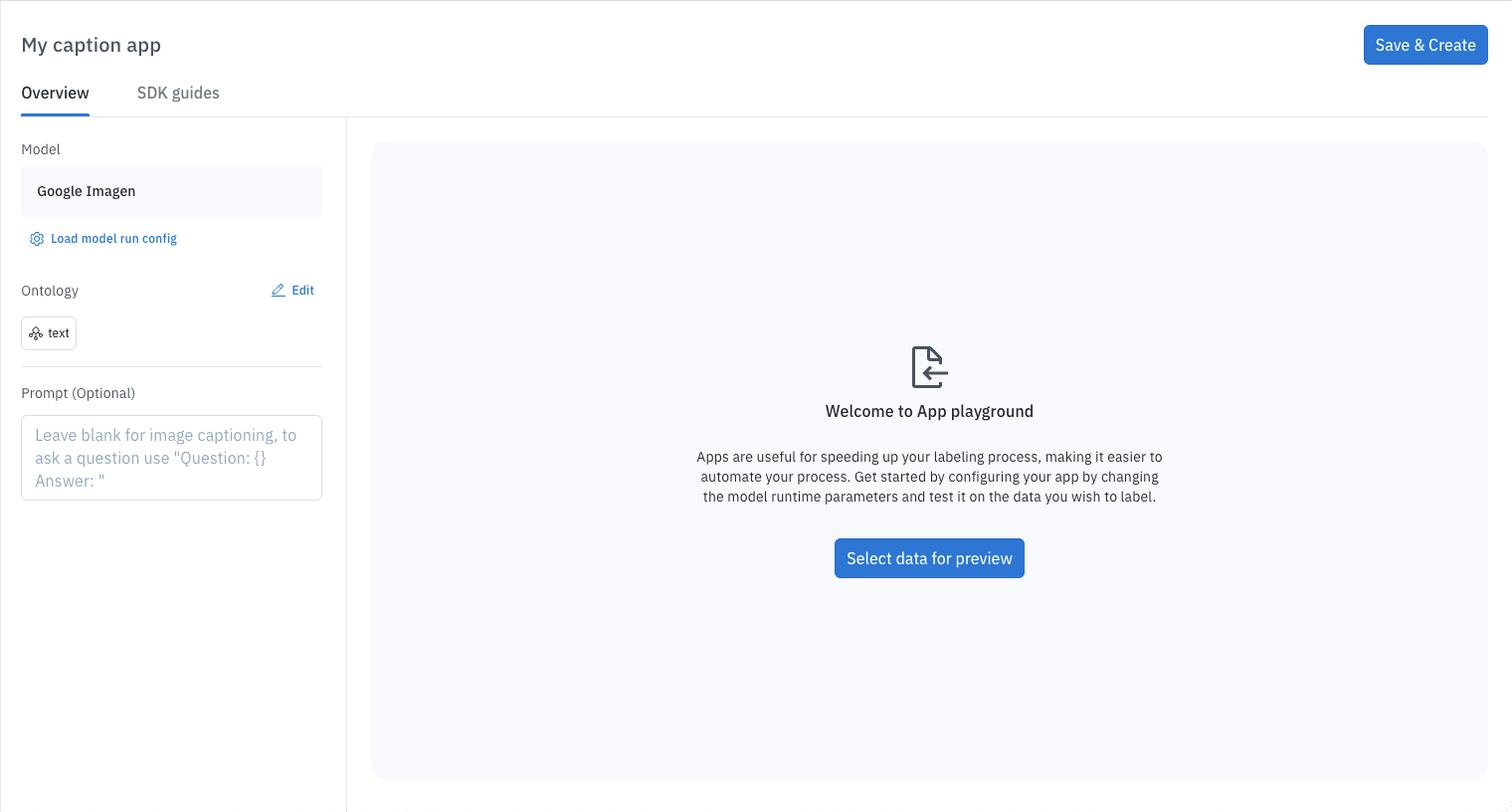 6. Optionally, you can select up to ten data rows to preview how the app will work. To do this, click **Select data for preview**, choose your data rows, and then click **Import selected**.
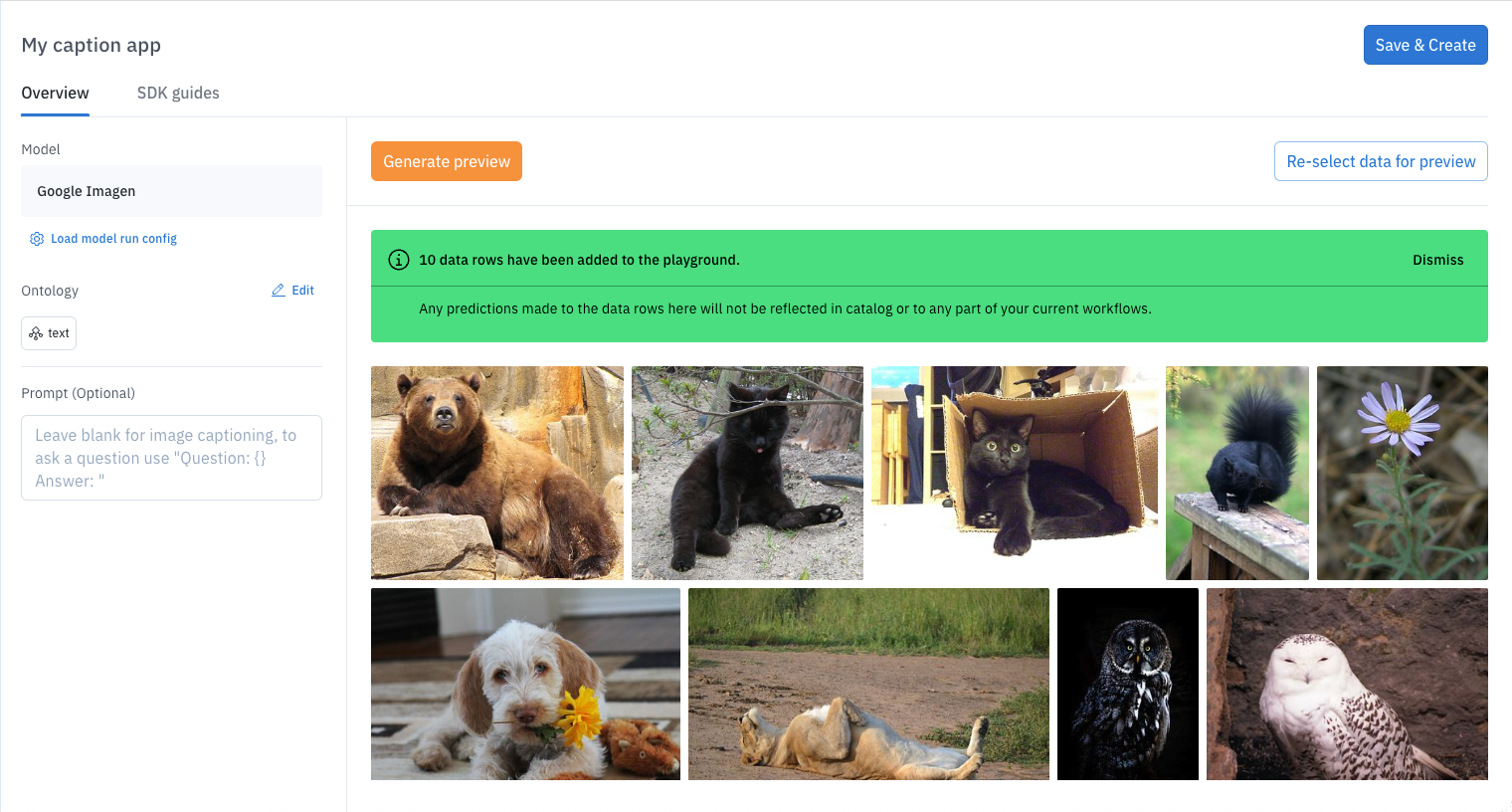 7. When you're finished, click **Save & Create**.
### Option 2: Save a model run configuration as an app
1. Start a regular Foundry model run by selecting your data rows and a model.
2. Configure your model run settings as you normally would.
3. Before submitting the model run, click the **Save as App** button, which appears near the model's name.
4. You'll be prompted to enter a name and description for your new app.
5. Click **Proceed** to create the app.
The **Save as App** button will not be displayed for models that are not compatible with Foundry apps.
## Update a Foundry app
To make changes to an existing Foundry app:
1. Sign in to Labelbox and go to the **Model** section.
2. Click on the **Apps** tab and select the app you want to update.
3. Adjust the app's settings as needed.
4. When you're done, click **Save & Update**.
## Delete a Foundry app
If you no longer need a Foundry app, you can delete it. Please be careful, as this action cannot be undone.
1. Sign in to the Labelbox app and go to the **Model** section.
2. From the **Apps** tab, select the app you want to delete.
3. Go to the **Settings** tab and click the **Delete app** button.
4. A confirmation prompt will appear. Type the word "delete" and then click **Delete**.
Use care when deleting apps. Deleted apps cannot be recovered or restored.
7. When you're finished, click **Save & Create**.
### Option 2: Save a model run configuration as an app
1. Start a regular Foundry model run by selecting your data rows and a model.
2. Configure your model run settings as you normally would.
3. Before submitting the model run, click the **Save as App** button, which appears near the model's name.
4. You'll be prompted to enter a name and description for your new app.
5. Click **Proceed** to create the app.
The **Save as App** button will not be displayed for models that are not compatible with Foundry apps.
## Update a Foundry app
To make changes to an existing Foundry app:
1. Sign in to Labelbox and go to the **Model** section.
2. Click on the **Apps** tab and select the app you want to update.
3. Adjust the app's settings as needed.
4. When you're done, click **Save & Update**.
## Delete a Foundry app
If you no longer need a Foundry app, you can delete it. Please be careful, as this action cannot be undone.
1. Sign in to the Labelbox app and go to the **Model** section.
2. From the **Apps** tab, select the app you want to delete.
3. Go to the **Settings** tab and click the **Delete app** button.
4. A confirmation prompt will appear. Type the word "delete" and then click **Delete**.
Use care when deleting apps. Deleted apps cannot be recovered or restored.