> ## Documentation Index
> Fetch the complete documentation index at: https://docs.labelbox.com/llms.txt
> Use this file to discover all available pages before exploring further.
# Model training integration
> Train a model with your labeled data in one click.
This page contains a step-by-step guide for training a model with your labeled data with one click.
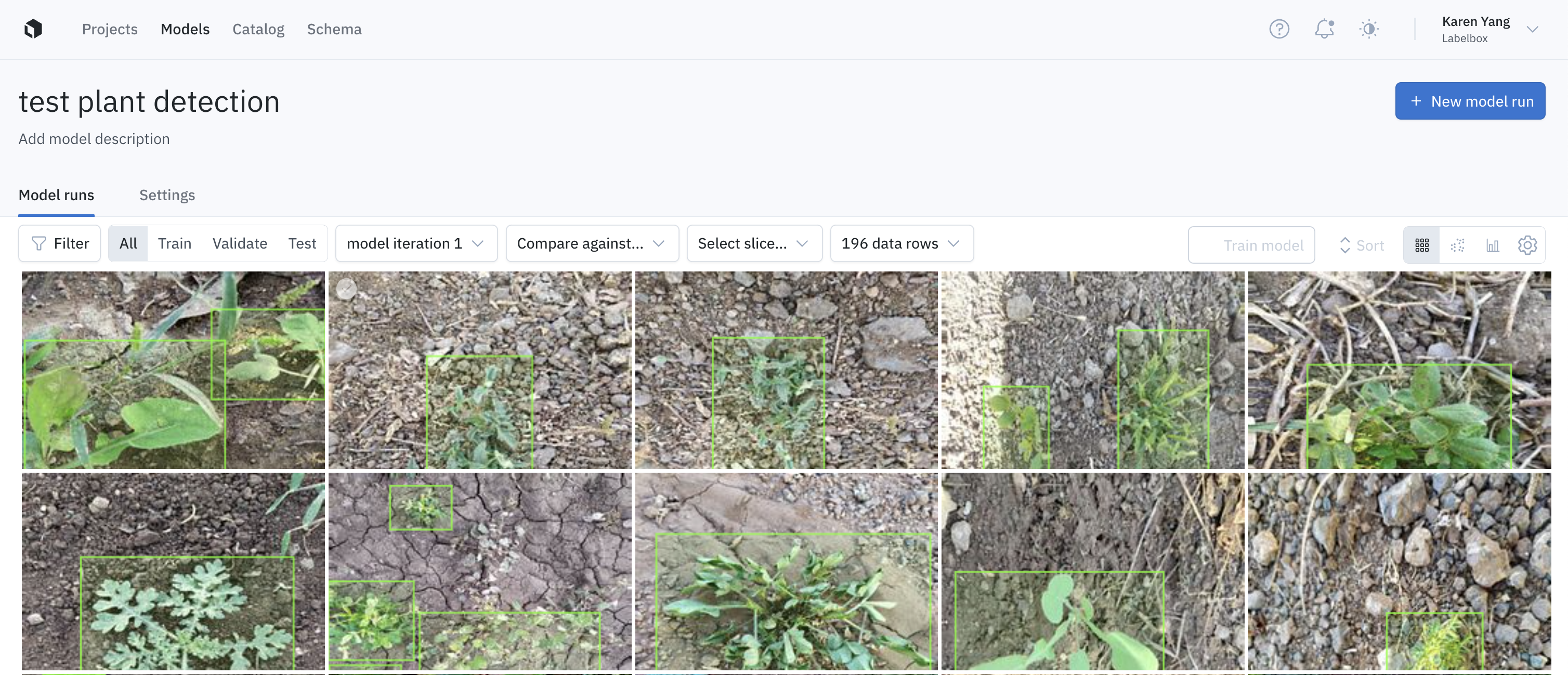
After you create an [experiment](/docs/experiments) and a [model run](/docs/create-a-model-run) specifying data rows and data splits, you'll notice that the **Train model** button is still inactivated and grey. This is because you need to establish model training settings before you can start with model training.
 ## Before you start
Before you can use the one-click model training integration, make sure you [set up your model training integration](/docs/integration-with-model-training-service) first. You only need to connect your training cloud account to your Labelbox organization once. Then, you can use the same integration for all model training requests.
Below are the annotation types that are supported directly by our reference models.
| Annotation type | Reference model |
| ------------------------ | ------------------------------------------------------------------ |
| Rectangle (bounding box) | Object detection |
| Radio and checklist | Image single/multi-classification Text single/multi-classification |
| Text Entity | Named entity recognition |
## Step 1: Configure the model training settings
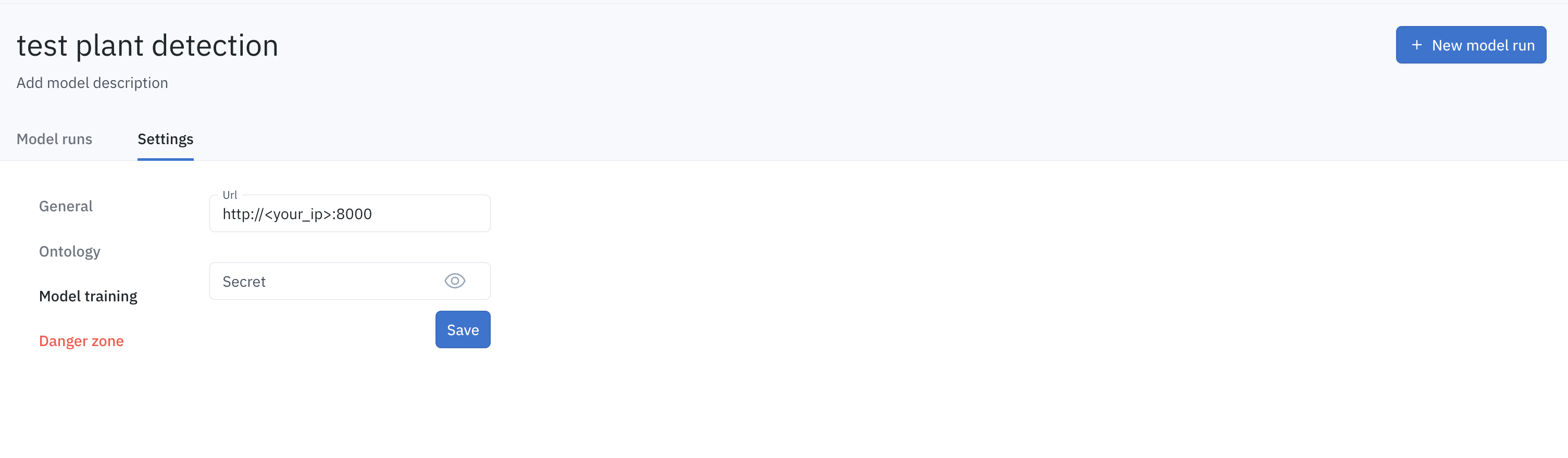
1. To configure the settings for your model training integration, go to the **Settings** tab and click **Model training**.
2. In the URL, input the IP address of your training pipeline coordinator deployed in the cloud (it should be printed in the console once at the end of the deploy script).
3. Replace **Secret** with the `SERVICE_SECRET` you set in your `.env` file.
4. Then, click **Save**.
## Before you start
Before you can use the one-click model training integration, make sure you [set up your model training integration](/docs/integration-with-model-training-service) first. You only need to connect your training cloud account to your Labelbox organization once. Then, you can use the same integration for all model training requests.
Below are the annotation types that are supported directly by our reference models.
| Annotation type | Reference model |
| ------------------------ | ------------------------------------------------------------------ |
| Rectangle (bounding box) | Object detection |
| Radio and checklist | Image single/multi-classification Text single/multi-classification |
| Text Entity | Named entity recognition |
## Step 1: Configure the model training settings
1. To configure the settings for your model training integration, go to the **Settings** tab and click **Model training**.
2. In the URL, input the IP address of your training pipeline coordinator deployed in the cloud (it should be printed in the console once at the end of the deploy script).
3. Replace **Secret** with the `SERVICE_SECRET` you set in your `.env` file.
4. Then, click **Save**.
 ## Step 2: Select the machine learning task
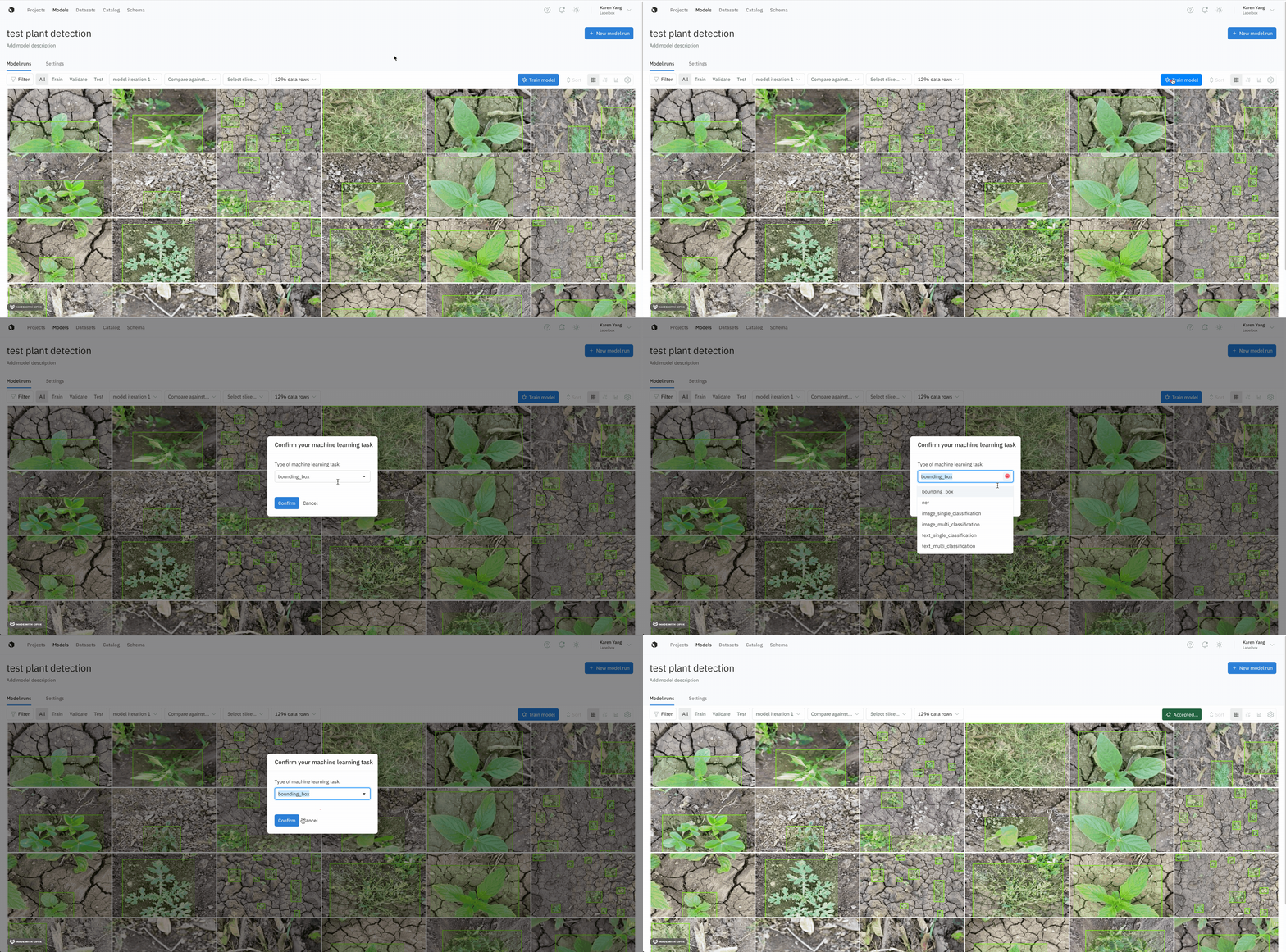
Now that you have the integration settings configured, go back to the **Model runs** tab where the **Train model** button should now be activated.
1. Click **Train model** to select one of the available models.
2. You will see a list of reference models provided by Labelbox. If you set up your custom training pipeline, those options should appear here as well.
3. Once you select the model, click **Submit** to start model training.
## Step 2: Select the machine learning task
Now that you have the integration settings configured, go back to the **Model runs** tab where the **Train model** button should now be activated.
1. Click **Train model** to select one of the available models.
2. You will see a list of reference models provided by Labelbox. If you set up your custom training pipeline, those options should appear here as well.
3. Once you select the model, click **Submit** to start model training.
 ## Step 3: View results
The model training will take a few hours to complete. You can come back to the **Model runs** page to check its progress.
Once the training is complete, you can view the predictions of the model on each data row as well as quantitative evaluation results.
## Step 3: View results
The model training will take a few hours to complete. You can come back to the **Model runs** page to check its progress.
Once the training is complete, you can view the predictions of the model on each data row as well as quantitative evaluation results.
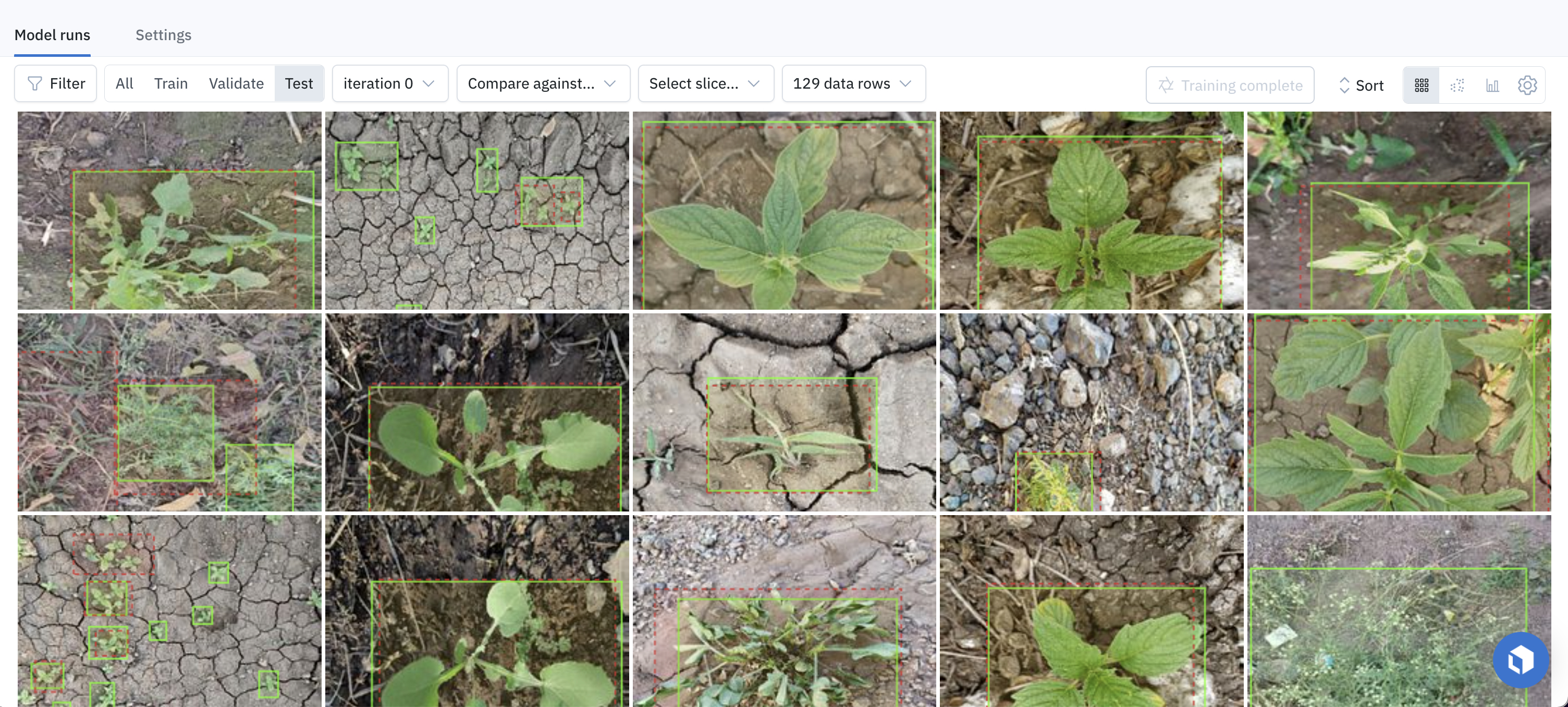 From here, you can [evaluate your model ](/docs/model-runs), [find model errors](/docs/find-model-errors) to improve your next model iteration, [find label errors](/docs/identify-labeling-mistakes) and [reduce your labeling budget](/docs/active-learning).