> ## Documentation Index
> Fetch the complete documentation index at: https://docs.labelbox.com/llms.txt
> Use this file to discover all available pages before exploring further.
# Natural language search
> A guide for using natural language search in Catalog.
You can use Labelbox's *natural language* search to surface data rows that match any expression you provide. This natural language search engine gives your team an edge by helping you find high-impact data rows in an ocean of data (e.g., rare data or edge cases).
We recommend using the native natural language search engine within our Catalog product.
 ## How natural language search works
Natural language search is powered by *vector embeddings*. A vector embedding is a numerical representation of a piece of data (e.g., an image, text, document, or video) that translates the raw data into a lower-dimensional space.
Recent advances in the machine learning field enable some neural networks (e.g., [CLIP vision model by OpenAI](https://openai.com/research/clip) or [all-mpnet-base-v2 text model](https://huggingface.co/sentence-transformers/all-mpnet-base-v2)) to recognize a wide variety of visual concepts in images, texts, or documents and associate them with keywords.
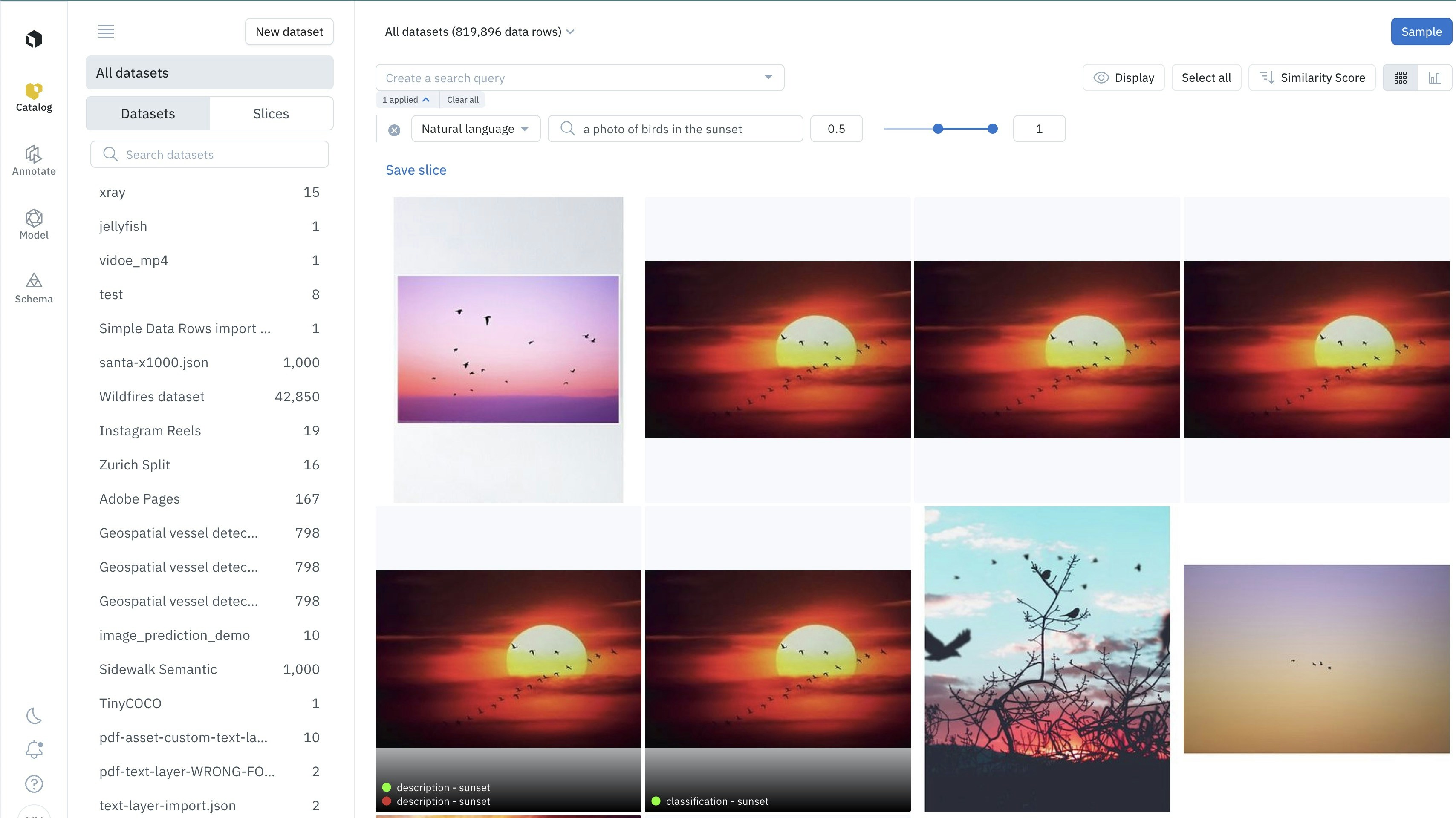
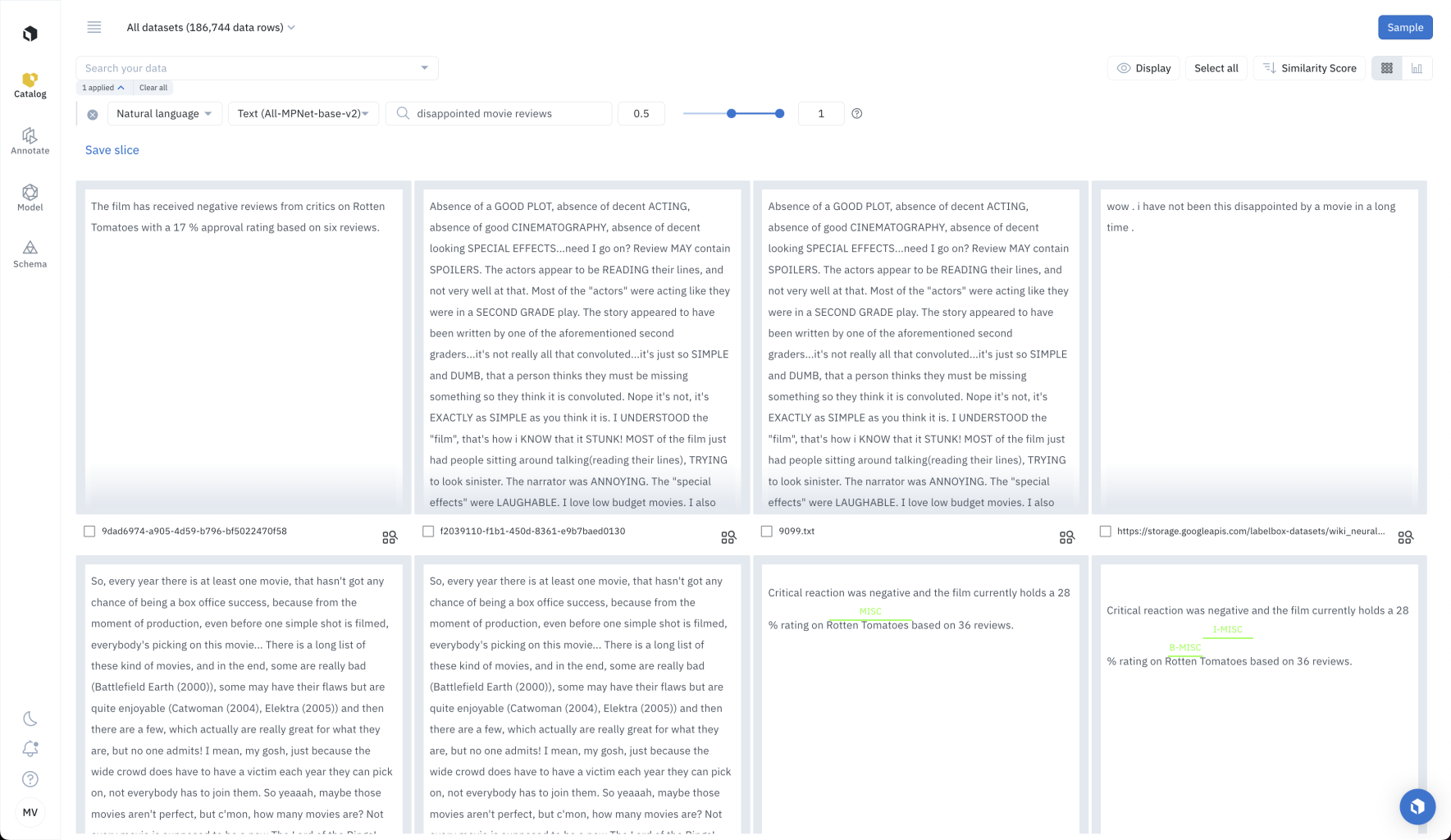
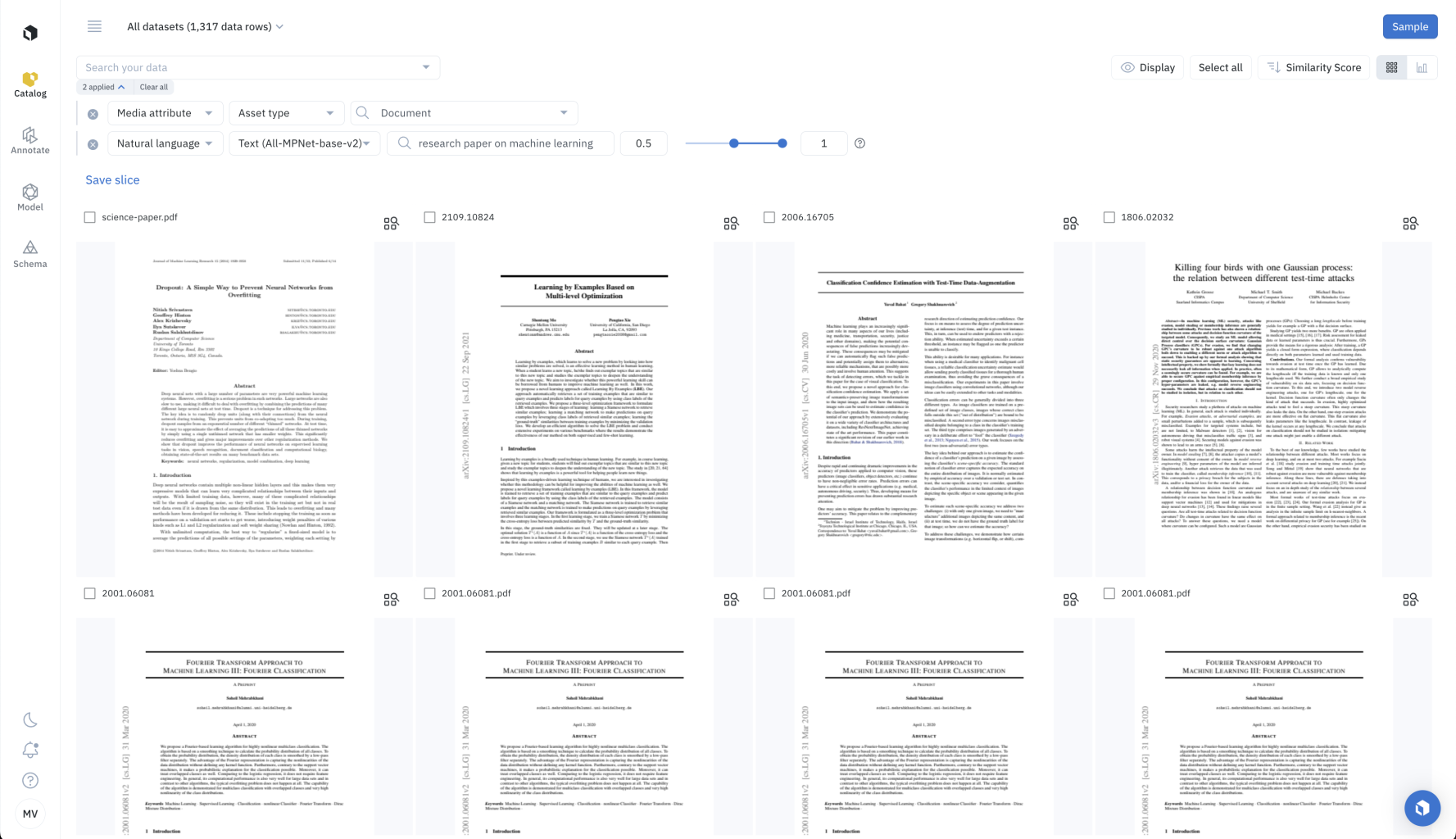
You can now surface images in Catalog by describing them in natural language. For example, type in *"a photo of birds in the sunset"* to surface images of birds in the sunset. You can also surface text, conversational text, or documents by describing them in natural language. For example, type in *"disappointed movie reviews"* to surface data rows that likely contain negative movie reviews.
### Character/word limit for natural language search
To view the character or word limit for the natural language filter, visit our [limits](/docs/limits) page.
## Supported media types
Labelbox supports natural language search for several data modalities. For each media type, the same neural network embeds both the user query and the data row. Below is the list of neural networks used for each media type.
| Asset type | Supported | Embedding |
| ----------------------- | --------------------- | ---------------------------------------------------------------------------------------------------------------------------------------------------------------------------------------------------------------------------------------- |
| **Image** | | [CLIP-ViT-B-32](https://huggingface.co/sentence-transformers/clip-ViT-B-32) (512 dimensions) |
| **Video** | | Google [Gemini Pro Vision](https://ai.google.dev/models/gemini). First two (2) minutes of content is embedded. Audio signal is not used currently. This is a paid add-on feature available upon request. |
| **Text** | | [all-mpnet-base-v2](https://huggingface.co/sentence-transformers/all-mpnet-base-v2) (768 dimensions), based on the first 64K characters |
| **HTML** | | [all-mpnet-base-v2](https://huggingface.co/sentence-transformers/all-mpnet-base-v2) (768 dimensions), based on the first 64K characters |
| **Document** | | [CLIP-ViT-B-32](https://huggingface.co/sentence-transformers/clip-ViT-B-32) (512 dimensions) and [all-mpnet-base-v2](https://huggingface.co/sentence-transformers/all-mpnet-base-v2) (768 dimensions), based on the first 64K characters |
| **Tiled imagery** | | [CLIP-ViT-B-32](https://huggingface.co/sentence-transformers/clip-ViT-B-32) (512 dimensions) |
| **Audio** | | Audio is transcribed to text. [all-mpnet-base-v2](https://huggingface.co/sentence-transformers/all-mpnet-base-v2) (768 dimensions) |
| **Conversational text** | | [all-mpnet-base-v2](https://huggingface.co/sentence-transformers/all-mpnet-base-v2) (768 dimensions), based on first 64K characters |
## How to search data using natural language
In the gallery view of Catalog, select the **Natural language** filter. Then, decide if you want to do a **Visual** search or **Text** search. Finally, input the description of the data you are looking for. The description must have at least 3 characters and at most 10 words.
## How natural language search works
Natural language search is powered by *vector embeddings*. A vector embedding is a numerical representation of a piece of data (e.g., an image, text, document, or video) that translates the raw data into a lower-dimensional space.
Recent advances in the machine learning field enable some neural networks (e.g., [CLIP vision model by OpenAI](https://openai.com/research/clip) or [all-mpnet-base-v2 text model](https://huggingface.co/sentence-transformers/all-mpnet-base-v2)) to recognize a wide variety of visual concepts in images, texts, or documents and associate them with keywords.
You can now surface images in Catalog by describing them in natural language. For example, type in *"a photo of birds in the sunset"* to surface images of birds in the sunset. You can also surface text, conversational text, or documents by describing them in natural language. For example, type in *"disappointed movie reviews"* to surface data rows that likely contain negative movie reviews.
### Character/word limit for natural language search
To view the character or word limit for the natural language filter, visit our [limits](/docs/limits) page.
## Supported media types
Labelbox supports natural language search for several data modalities. For each media type, the same neural network embeds both the user query and the data row. Below is the list of neural networks used for each media type.
| Asset type | Supported | Embedding |
| ----------------------- | --------------------- | ---------------------------------------------------------------------------------------------------------------------------------------------------------------------------------------------------------------------------------------- |
| **Image** | | [CLIP-ViT-B-32](https://huggingface.co/sentence-transformers/clip-ViT-B-32) (512 dimensions) |
| **Video** | | Google [Gemini Pro Vision](https://ai.google.dev/models/gemini). First two (2) minutes of content is embedded. Audio signal is not used currently. This is a paid add-on feature available upon request. |
| **Text** | | [all-mpnet-base-v2](https://huggingface.co/sentence-transformers/all-mpnet-base-v2) (768 dimensions), based on the first 64K characters |
| **HTML** | | [all-mpnet-base-v2](https://huggingface.co/sentence-transformers/all-mpnet-base-v2) (768 dimensions), based on the first 64K characters |
| **Document** | | [CLIP-ViT-B-32](https://huggingface.co/sentence-transformers/clip-ViT-B-32) (512 dimensions) and [all-mpnet-base-v2](https://huggingface.co/sentence-transformers/all-mpnet-base-v2) (768 dimensions), based on the first 64K characters |
| **Tiled imagery** | | [CLIP-ViT-B-32](https://huggingface.co/sentence-transformers/clip-ViT-B-32) (512 dimensions) |
| **Audio** | | Audio is transcribed to text. [all-mpnet-base-v2](https://huggingface.co/sentence-transformers/all-mpnet-base-v2) (768 dimensions) |
| **Conversational text** | | [all-mpnet-base-v2](https://huggingface.co/sentence-transformers/all-mpnet-base-v2) (768 dimensions), based on first 64K characters |
## How to search data using natural language
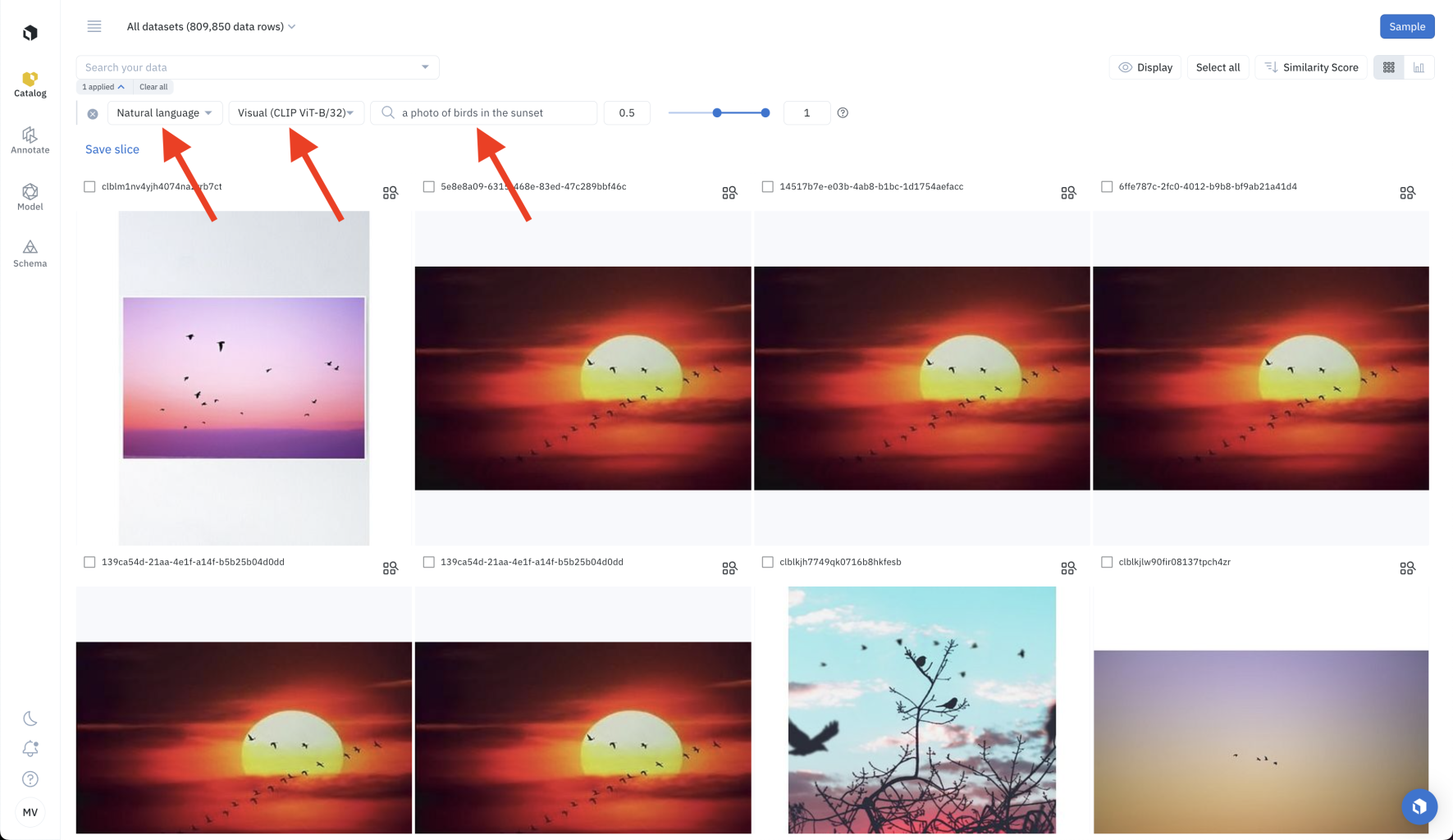
In the gallery view of Catalog, select the **Natural language** filter. Then, decide if you want to do a **Visual** search or **Text** search. Finally, input the description of the data you are looking for. The description must have at least 3 characters and at most 10 words.
 ### Prompt engineering
Prompt engineering involves trying several prompts until finding one that works well. Labelbox recommends trying several natural language descriptions (or *prompts*) until the natural language search surfaces the data you are looking for. Users have reported that small tweaks to the prompt can help return more relevant data.
**Pro tip: Refine your prompt with positive biases and negative biases.**
You can refine your prompt by adding positive biases and negative biases, using this prompt structure: `[my prompt] / [more of this positive bias] / [less of this negative bias]`.
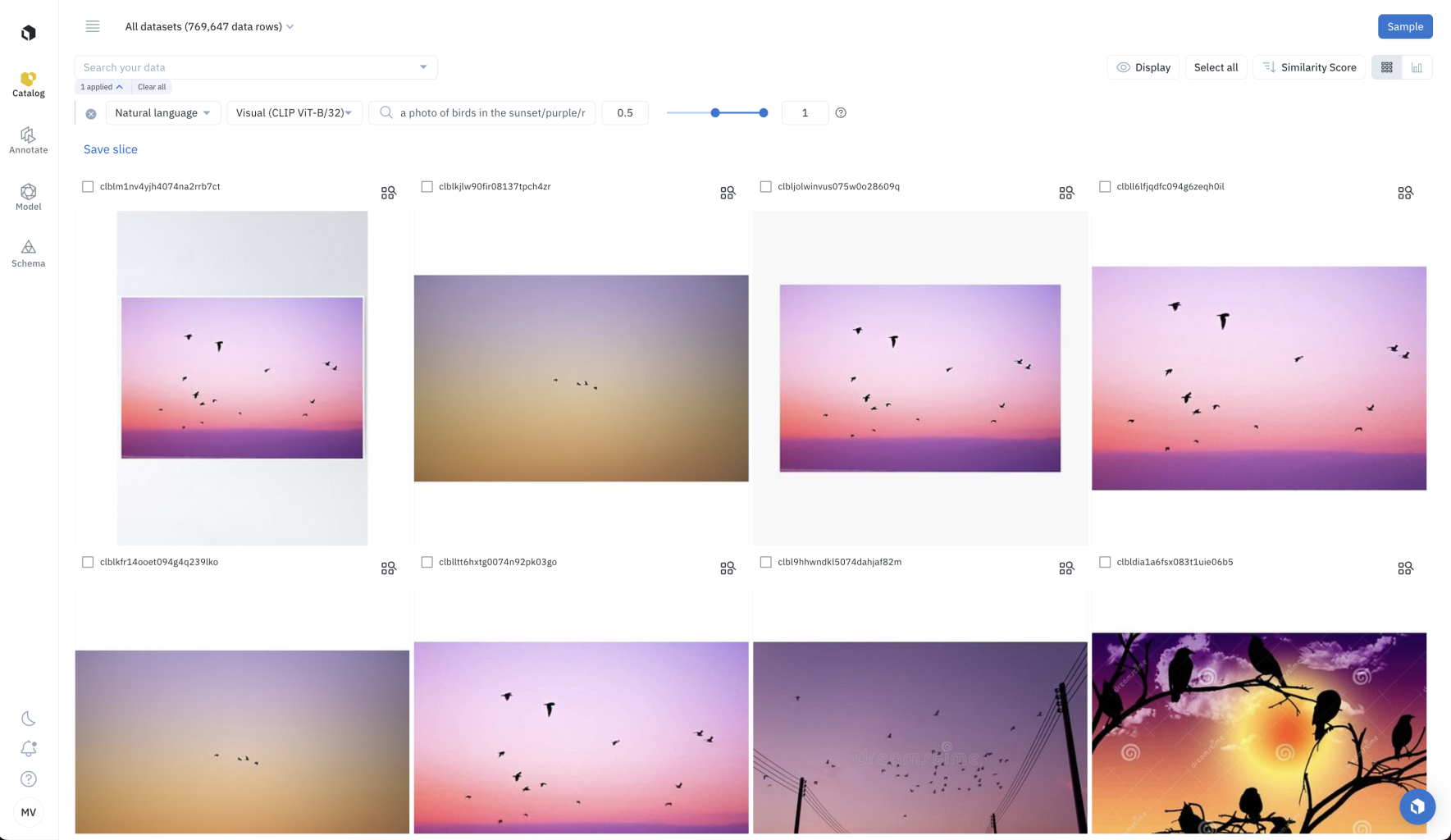
For example, I can refine my search for `a photo of birds in the sunset`, by asking for `purple` sunsets and not `red` sunsets, with the prompt: `a photo of birds in the sunset / purple / red`. This returns only images of birds in a purple sunset, and not in a red sunset.
### Prompt engineering
Prompt engineering involves trying several prompts until finding one that works well. Labelbox recommends trying several natural language descriptions (or *prompts*) until the natural language search surfaces the data you are looking for. Users have reported that small tweaks to the prompt can help return more relevant data.
**Pro tip: Refine your prompt with positive biases and negative biases.**
You can refine your prompt by adding positive biases and negative biases, using this prompt structure: `[my prompt] / [more of this positive bias] / [less of this negative bias]`.
For example, I can refine my search for `a photo of birds in the sunset`, by asking for `purple` sunsets and not `red` sunsets, with the prompt: `a photo of birds in the sunset / purple / red`. This returns only images of birds in a purple sunset, and not in a red sunset.
 ### Set the score range
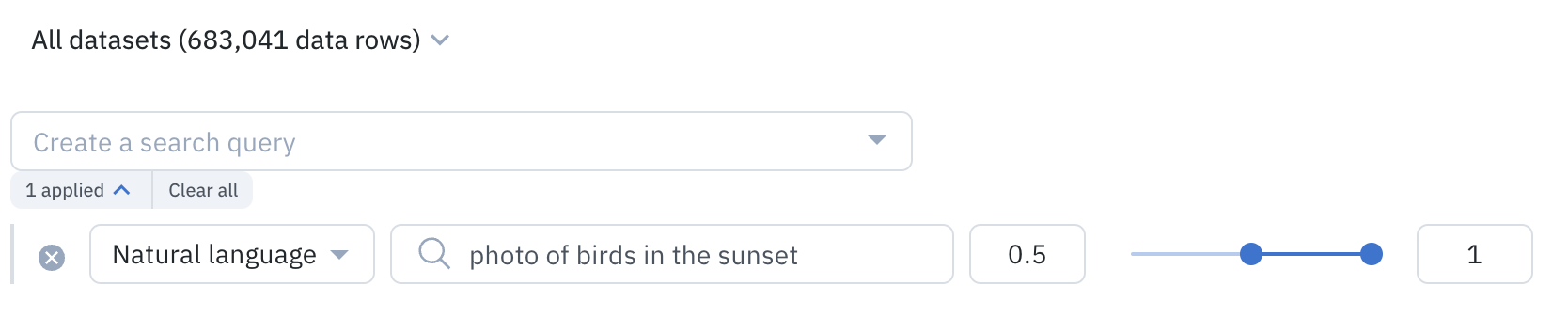
Natural language search surfaces the data rows whose embeddings are closest to the prompt. This is measured using cosine distance, a number between 0 and 1. The more similar the embeddings, the higher the natural language score.
By default, Labelbox returns embeddings with a natural language score between 0.5 and 1. You can customize this range by setting the minimum and maximum values of the natural language search slider.
### Set the score range
Natural language search surfaces the data rows whose embeddings are closest to the prompt. This is measured using cosine distance, a number between 0 and 1. The more similar the embeddings, the higher the natural language score.
By default, Labelbox returns embeddings with a natural language score between 0.5 and 1. You can customize this range by setting the minimum and maximum values of the natural language search slider.
 ### Combine natural language search & other searches
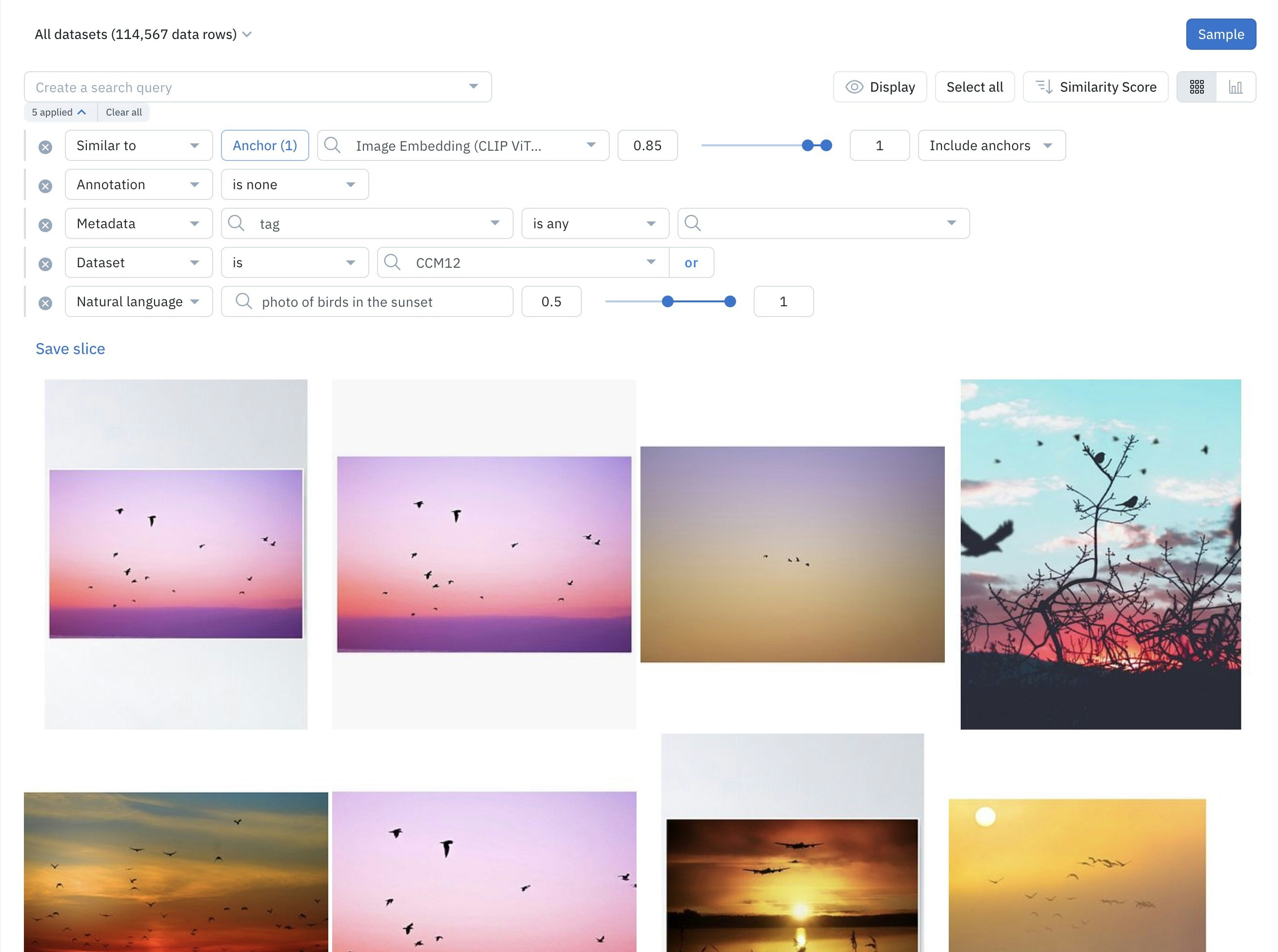
You can combine natural language search with other filters in Catalog. Some filters are best used for targeting *unstructured* data, and others for targeting *structured* data.
Combine natural language search with the following filters to target data rows by structured data:
Combine natural language search with the following filters to search unstructured data:
### Combine natural language search & other searches
You can combine natural language search with other filters in Catalog. Some filters are best used for targeting *unstructured* data, and others for targeting *structured* data.
Combine natural language search with the following filters to target data rows by structured data:
Combine natural language search with the following filters to search unstructured data:
 ## Automate data curation with slices
After populating filters in Catalog, you can save these filters as a [slice](/docs/slices) of data. When you save a filter as a slice, you will not need to populate the same filters repeatedly. Also, slices are dynamic, so any new incoming data row in Catalog will appear in the relevant slices.
Read the following resources to learn how to take action on the filtered data.
## Automate data curation with slices
After populating filters in Catalog, you can save these filters as a [slice](/docs/slices) of data. When you save a filter as a slice, you will not need to populate the same filters repeatedly. Also, slices are dynamic, so any new incoming data row in Catalog will appear in the relevant slices.
Read the following resources to learn how to take action on the filtered data.