> ## Documentation Index
> Fetch the complete documentation index at: https://docs.labelbox.com/llms.txt
> Use this file to discover all available pages before exploring further.
# Text
> Guide for labeling text data.
When creating a project, select **Text**.
 ## Import text data
To learn how to text data to Labelbox, visit our docs on [Importing text data](/reference/import-text-data).
### Data row size limit
To view the maximum size allowed for a data row, visit our [limits](/docs/limits) page.
## Supported annotation types
Below are all of the annotation types you may include in your ontology when you are labeling text data. Classification-type annotations can be applied at the global level and/or nested within an object-type annotation.
| Feature | Import annotations | Export annotations |
| --------------------------------- | ----------------------------------------------------------------------------------------- | -------------------------------------------------------------------------- |
| **Entity** | [See payload](/reference/import-text-annotations#entity) | [See payload](/reference/export-text-annotations#text-entity-named-entity) |
| **Relationships** | [See payload](/reference/import-text-annotations#relationship) | [See payload](/reference/export-text-annotations#relationship) |
| **Radio classification** | [See payload](/reference/import-text-annotations#classification---radio-single-choice) | [See payload](/reference/export-text-annotations#radio) |
| **Checklist classification** | [See payload](/reference/import-text-annotations#classification---checklist-multi-choice) | [See payload](/reference/export-text-annotations#checklist) |
| **Free-form text classification** | [See payload](/reference/import-text-annotations#classification---free-form-text) | [See payload](/reference/export-text-annotations#free-form-text) |
### Text entity
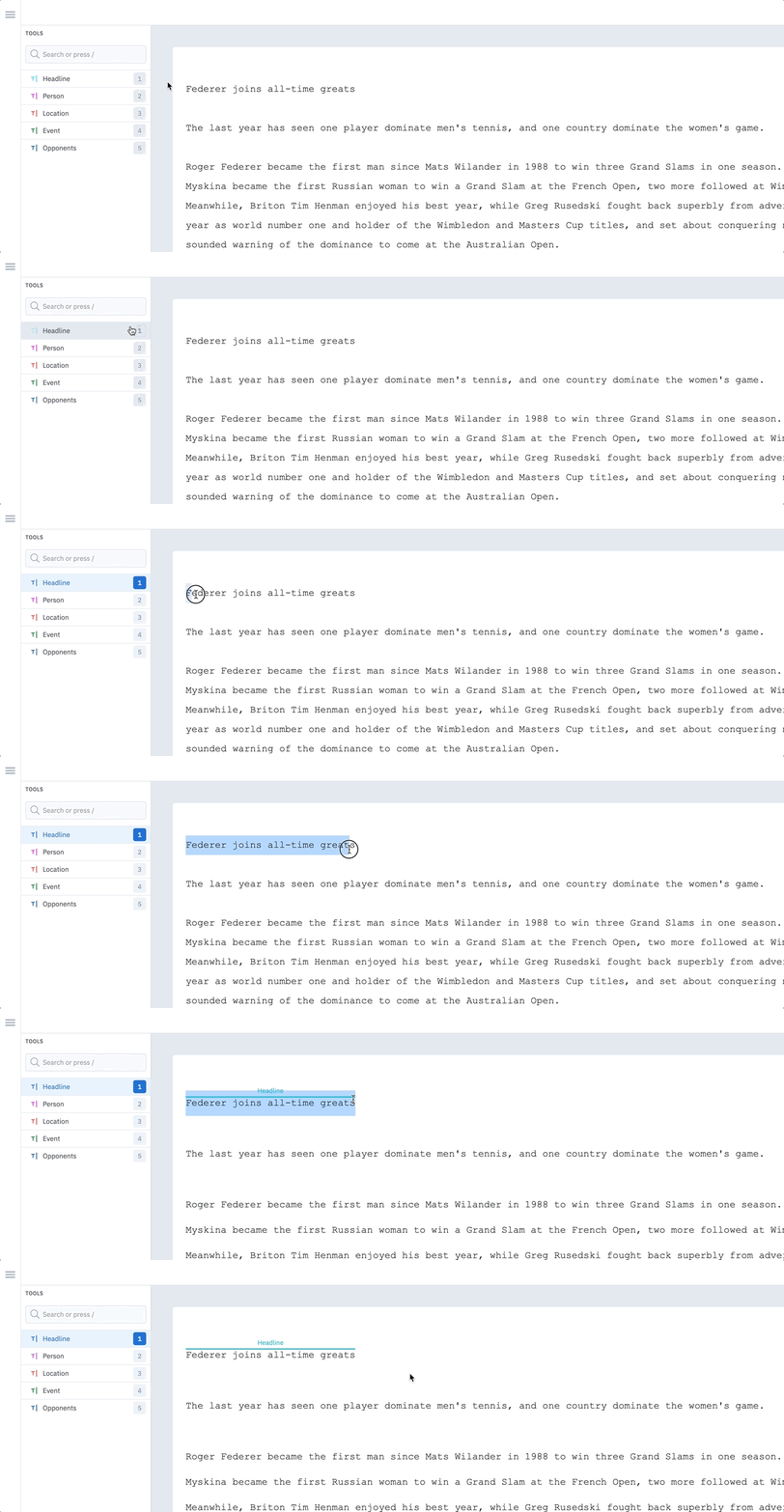
Create an entity by clicking the desired starting character and dragging to select a sequence of characters in the unstructured text.
## Import text data
To learn how to text data to Labelbox, visit our docs on [Importing text data](/reference/import-text-data).
### Data row size limit
To view the maximum size allowed for a data row, visit our [limits](/docs/limits) page.
## Supported annotation types
Below are all of the annotation types you may include in your ontology when you are labeling text data. Classification-type annotations can be applied at the global level and/or nested within an object-type annotation.
| Feature | Import annotations | Export annotations |
| --------------------------------- | ----------------------------------------------------------------------------------------- | -------------------------------------------------------------------------- |
| **Entity** | [See payload](/reference/import-text-annotations#entity) | [See payload](/reference/export-text-annotations#text-entity-named-entity) |
| **Relationships** | [See payload](/reference/import-text-annotations#relationship) | [See payload](/reference/export-text-annotations#relationship) |
| **Radio classification** | [See payload](/reference/import-text-annotations#classification---radio-single-choice) | [See payload](/reference/export-text-annotations#radio) |
| **Checklist classification** | [See payload](/reference/import-text-annotations#classification---checklist-multi-choice) | [See payload](/reference/export-text-annotations#checklist) |
| **Free-form text classification** | [See payload](/reference/import-text-annotations#classification---free-form-text) | [See payload](/reference/export-text-annotations#free-form-text) |
### Text entity
Create an entity by clicking the desired starting character and dragging to select a sequence of characters in the unstructured text.
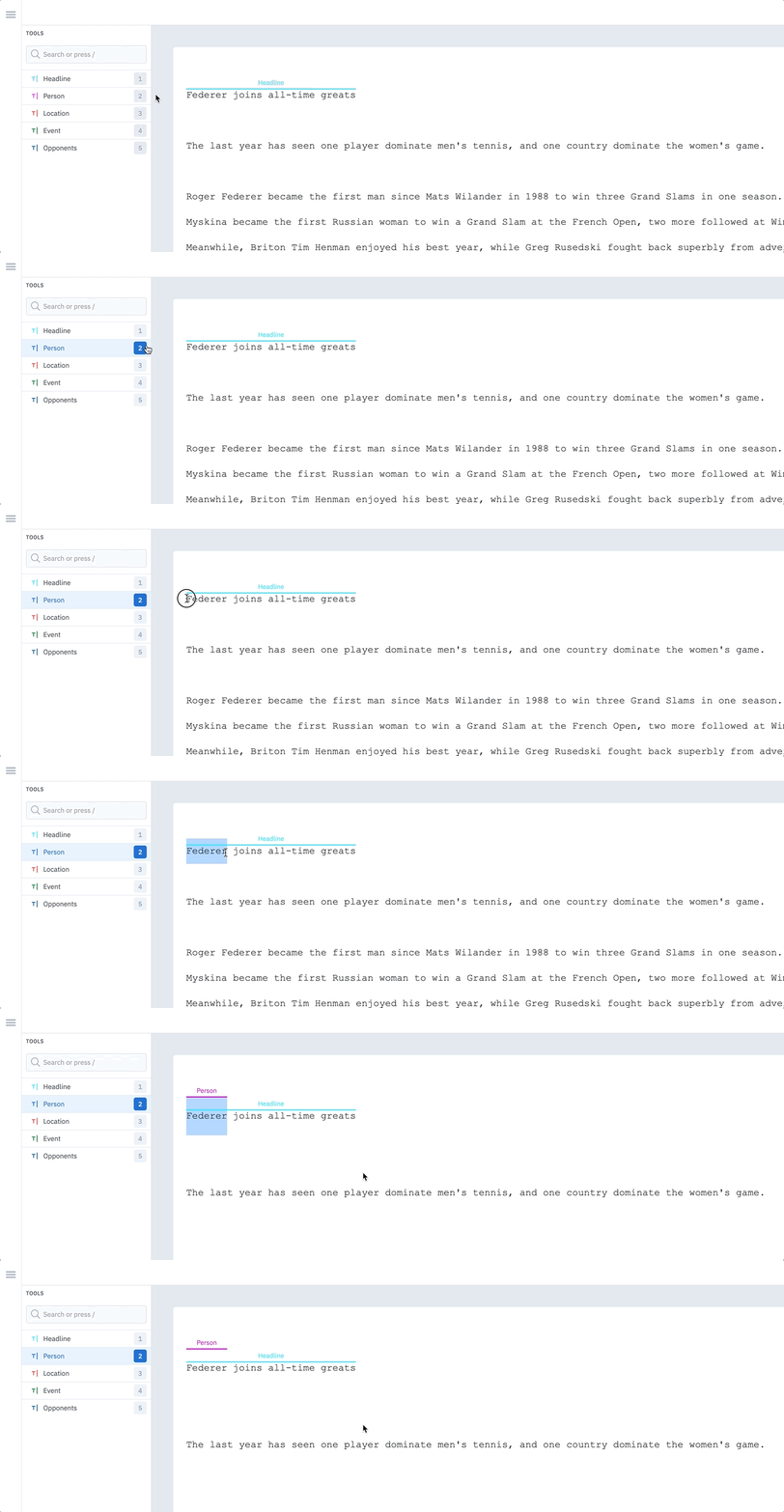
 The characters in a text file are not restricted to a single annotation. Therefore, entity annotations can overlap completely or partially.
 #### Full word selection
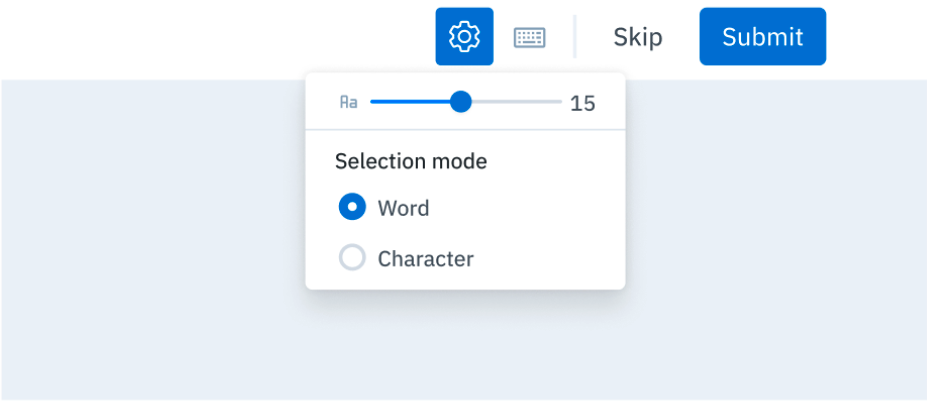
When labeling text, you can hover over and annotate full words with one click rather than dragging your cursor and labeling character by character. This feature allows for vastly more efficient labeling and decreases the likelihood of labeling errors.
To toggle between **Word** and **Character** mode, click on the **Settings** icon in the text editor and select an option. You can also toggle between approaches using the hotkeys `Shift` + `W` for **Word** mode and `Shift` + `C` for **Character** mode. The default setting for all users is **Word** mode.
#### Full word selection
When labeling text, you can hover over and annotate full words with one click rather than dragging your cursor and labeling character by character. This feature allows for vastly more efficient labeling and decreases the likelihood of labeling errors.
To toggle between **Word** and **Character** mode, click on the **Settings** icon in the text editor and select an option. You can also toggle between approaches using the hotkeys `Shift` + `W` for **Word** mode and `Shift` + `C` for **Character** mode. The default setting for all users is **Word** mode.
 ### Relationship
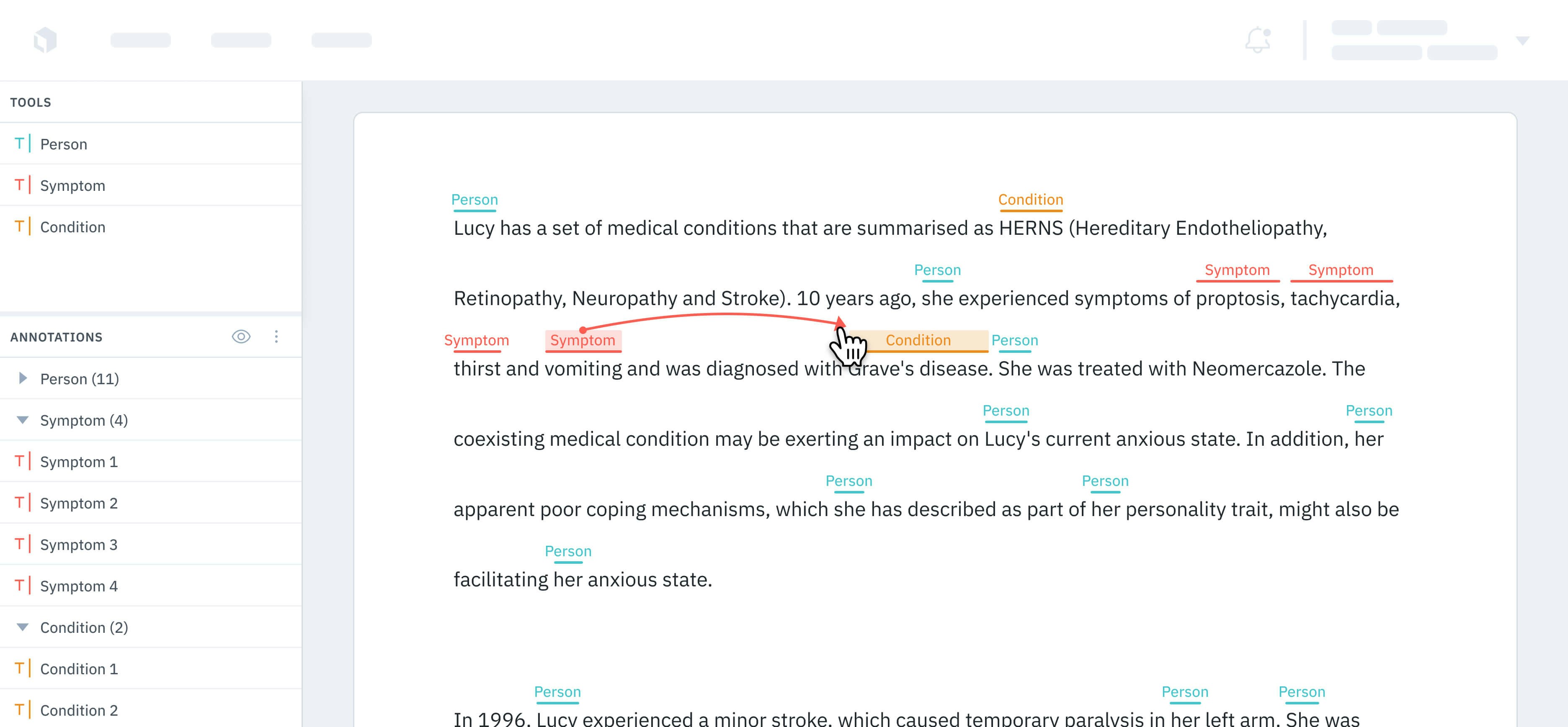
With annotation relationships, you can create and define relationships between entity annotations in the text editor. You can then use these annotation relationships to consolidate labeling workflows and potentially reduce the number of language models needed.
Follow these steps to create a relationship between two entity annotations:
1. In the editor, create two entity annotations.
### Relationship
With annotation relationships, you can create and define relationships between entity annotations in the text editor. You can then use these annotation relationships to consolidate labeling workflows and potentially reduce the number of language models needed.
Follow these steps to create a relationship between two entity annotations:
1. In the editor, create two entity annotations.
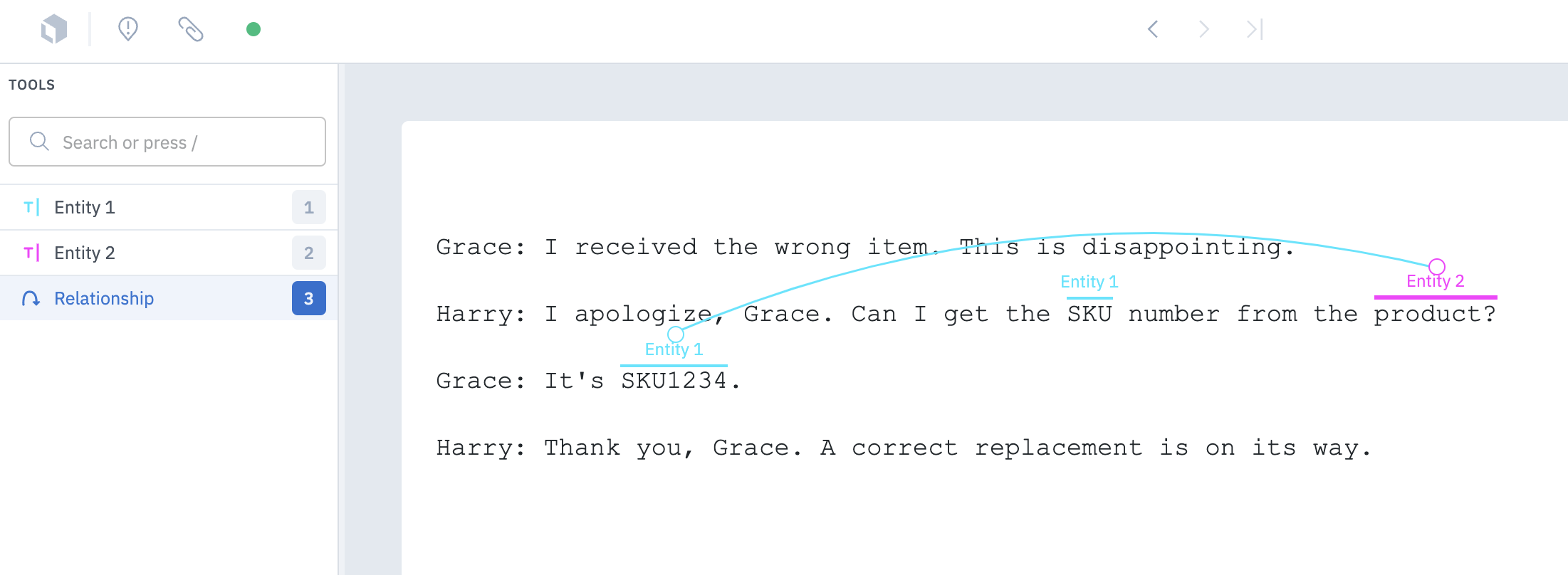
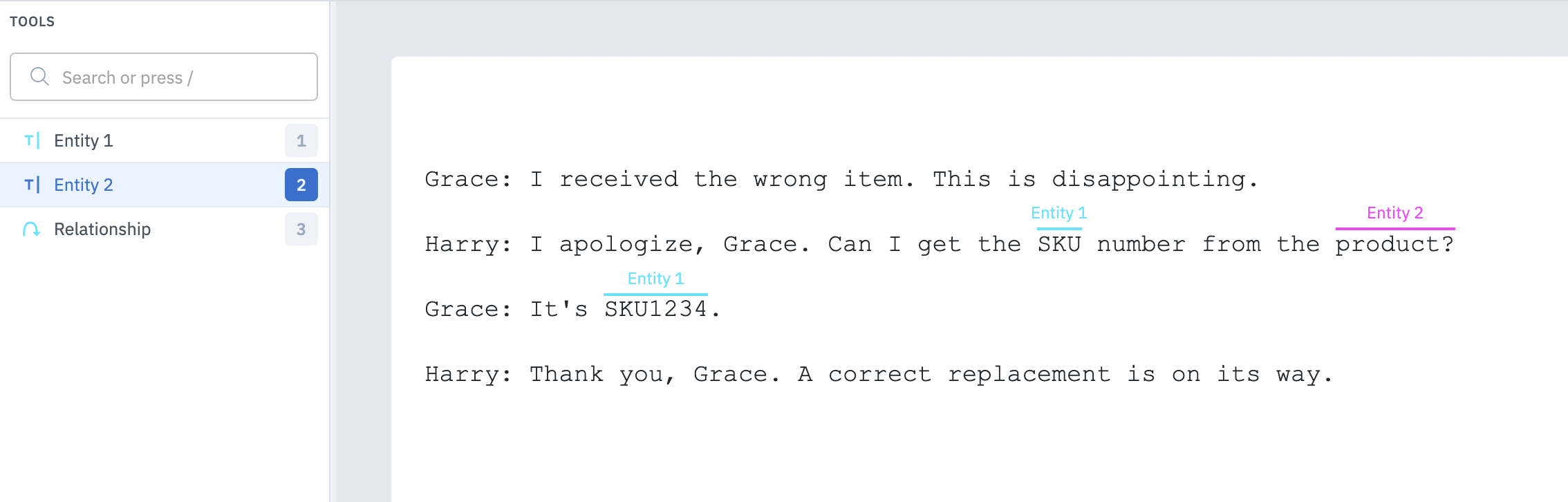 2. Select the relationship annotation from the Tools menu, then click on one of the entity annotations. To create the relationship, move your cursor to another entity and click to create the relationship.
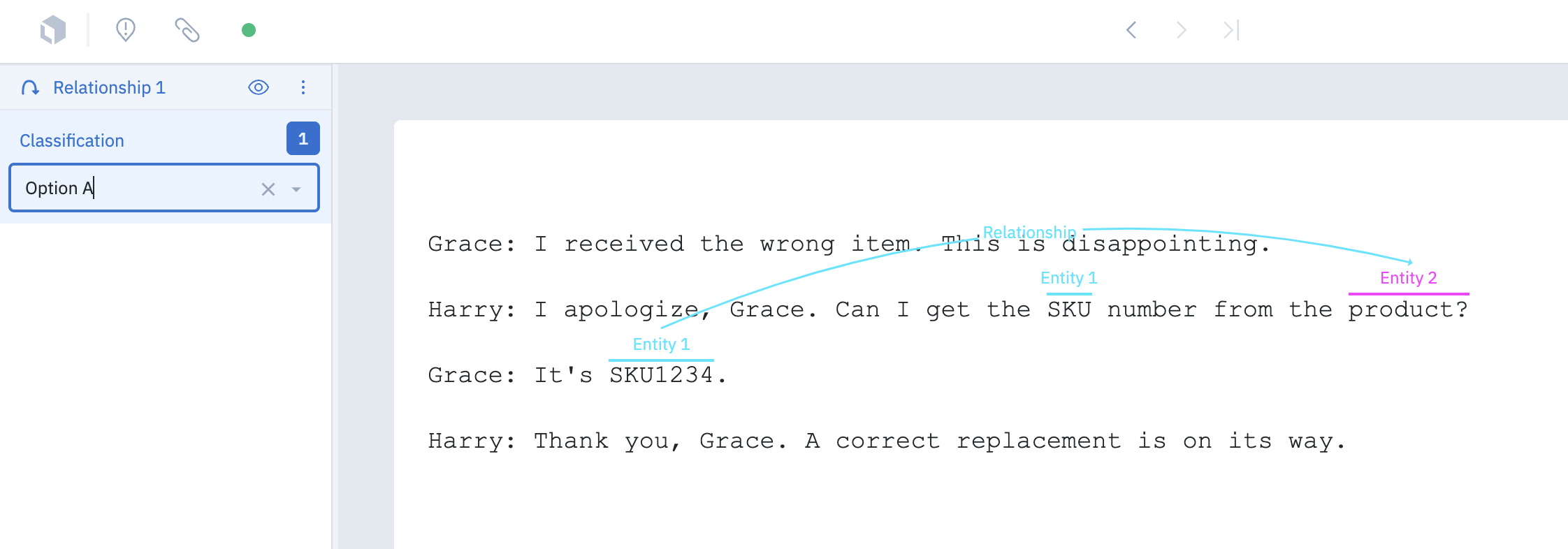
 3. Add an optional subclassification to the relationship.
 ## Text-specific hotkeys
| Function | Hotkey | Description |
| --------------------- | ------------------------------------------ | ------------------------------------------------------------------------------------------------- |
| Create a relationship | `Option` + Click (source) + Click (target) | Select an entity to be the source of a relationship, then select another entity to be the target. |
## Text-specific hotkeys
| Function | Hotkey | Description |
| --------------------- | ------------------------------------------ | ------------------------------------------------------------------------------------------------- |
| Create a relationship | `Option` + Click (source) + Click (target) | Select an entity to be the source of a relationship, then select another entity to be the target. |