> ## Documentation Index
> Fetch the complete documentation index at: https://docs.labelbox.com/llms.txt
> Use this file to discover all available pages before exploring further.
# Project overview
> Understand what a project is and how to navigate the project overview dashboard.
A project in Labelbox is the central workspace where you manage your data, configure your labeling interface, and collaborate with your team to create high-quality training data. Think of it as the primary hub for any specific dataset you intend to label.
From the moment you create a project, it becomes the single source of truth for that labeling initiative. Within a project, you will:
* **Connect your data:** Link the images, text, or other documents you need to label.
* **Define your ontology:** Create the specific classes and categories that your team will use for annotation.
* **Assign your team:** Invite and manage the labelers and reviewers who will work on the data.
* **Monitor progress:** Track the status of labeling, review, and rework tasks.
* **Measure quality:** Use tools like Consensus and Benchmark to ensure your labels are accurate and consistent.
When you open a project, you'll land on the main **Project Dashboard**. This provides a high-level overview of your project's health and progress.
## Project overview
The **Overview** tab is your command center for a specific labeling project. It provides a comprehensive, at-a-glance summary of your project's health, progress, and quality. Think of it as the first place you should look to understand what's happening, identify potential issues, and ensure your project is on track to meet its goals.
### Project metrics
The **Participation** view is an embedded version of the Participation histogram from the Performance tab. Click on **View details** to open the chart in the Performance tab.
The **Pipeline** view displays of all statuses in a project and a count of data rows in each status. It also provides a count of the issues.
Status descriptions:
| Status | Description |
| ------------------------- | -------------------------------------------------------------------------------------------------------------------------------------------------------------------------------------------------------------------------------------------------------------------------------------------------------------------------------------- |
| **Initial labeling task** | This is the very first step in the workflow where a data asset is assigned to a labeler to be annotated for the first time. The labeler's task is to create the initial set of labels according to the project guidelines. |
| **Rework (all rejected)** | This step occurs after a label has been rejected during a review. The data asset is sent back to a labeler—often the original one—to correct the specific errors that the reviewer identified. Once the corrections are made, the asset is submitted again for another review. |
| **Initial review task** | This is a quality assurance step that follows the initial labeling task. A different team member (a reviewer) inspects the labels to ensure they are accurate and meet the project's quality standards. The reviewer can either approve the asset, or reject it and send it to the rework step. |
| **Skipped** | This status is applied when a labeler chooses to skip a data asset in their queue without annotating it. This action returns the asset to the general labeling queue so it can be assigned to another labeler. A labeler might skip an asset if the data is unclear, corrupted, or if they are unsure how to apply the correct labels. |
| **Done** | This is the final state for a data asset in the workflow. It signifies that the asset has successfully passed all required labeling and review steps and is considered complete and ready to be used for model training. |
| **Issues** | This is not a linear step but a collaborative feature used to flag problems. An "issue" can be created on a data asset at any stage to highlight a problem, ask a question, or start a discussion. This action pauses the asset in the workflow until the issue is formally resolved by the team. |
### Workflow tasks
From this section you can enter a specific step in the labeling workflow or quickly add an entirely new step.
### Analytics view
This section lists all the features in a project along with the count of annotations for each.
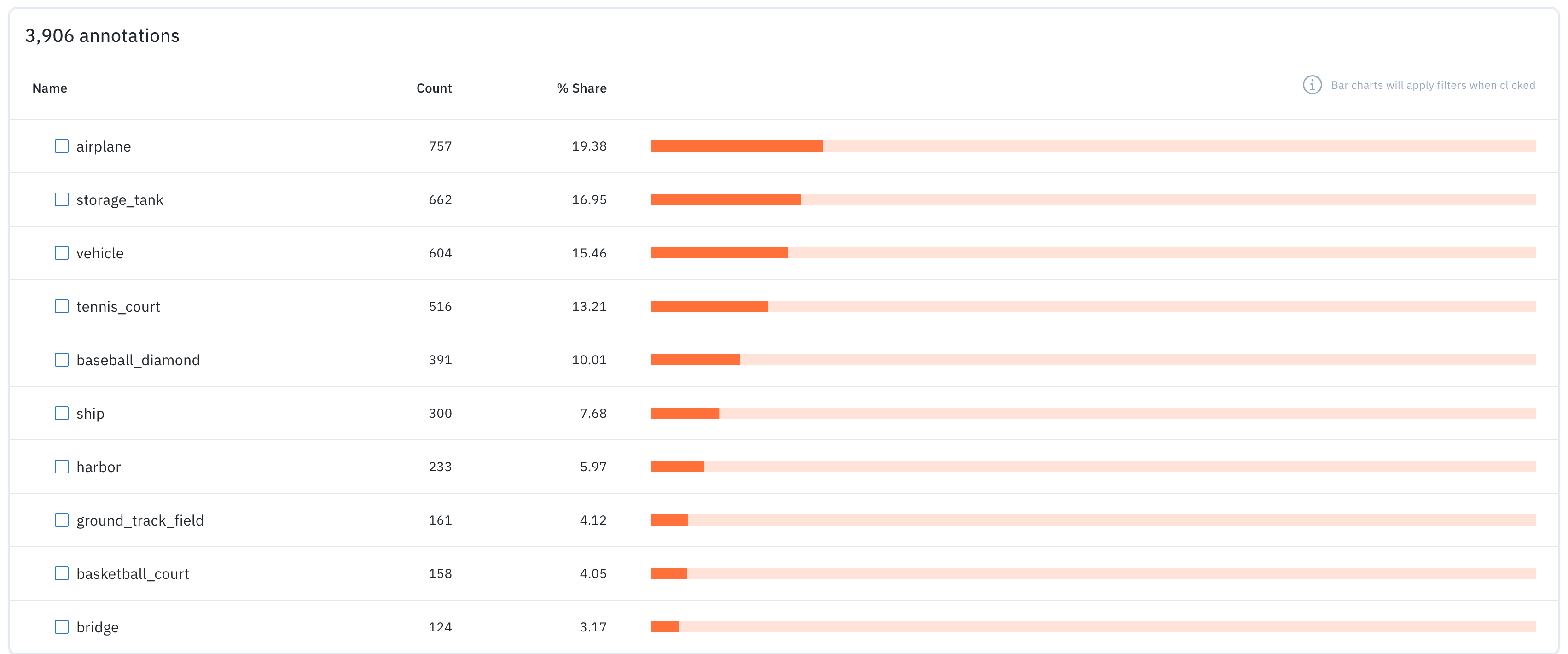 For each feature, you can see the following:
* **Name** of the feature.
* **Count** of data rows that contain the feature.
* **% Share** indicating the percentage of data rows that contain the feature.
* A horizontal bar chart that depicts the percent share. You can also click the bar to navigate to a filtered view of the data rows tab including only the data rows that contain the relevant feature.
For each feature, you can see the following:
* **Name** of the feature.
* **Count** of data rows that contain the feature.
* **% Share** indicating the percentage of data rows that contain the feature.
* A horizontal bar chart that depicts the percent share. You can also click the bar to navigate to a filtered view of the data rows tab including only the data rows that contain the relevant feature.