> ## Documentation Index
> Fetch the complete documentation index at: https://docs.labelbox.com/llms.txt
> Use this file to discover all available pages before exploring further.
# Catalog slice
> How to programmatically retrieve data from a Catalog slice through the SDK
## Get Catalog slices via SDK
You can programmatically retrieve a slice's data rows and all associated information via our Python SDK. From there, you can use Catalog to inspect the data rows you retrieved via the SDK visually.
Retrieving a slice programmatically is a convenient way to curate a new batch or a model run dataset directly from a saved slice.
# End-to-end example: create and retrieve Catalog slices
### Before you start
You must import these libraries to use the code examples in this section
```python Python theme={null}
import labelbox as lb
import uuid
```
### Replace with your API key
```python Python theme={null}
API_KEY = ""
# To get your API key go to: Workspace settings -> API -> Create API Key
client = lb.Client(api_key=API_KEY)
```
## Create a Catalog slice
Currently, we do not support creating slices through the SDK; for the purpose of this demo, we will create a catalog slice through the UI.
Navigate to the **Catalog** section of the Labelbox Platform, and select **All datasets** or a particular dataset you would like to create a slice from.
Navigate to **Search your data** dropdown menu or use a **similarity search** to create a filter.
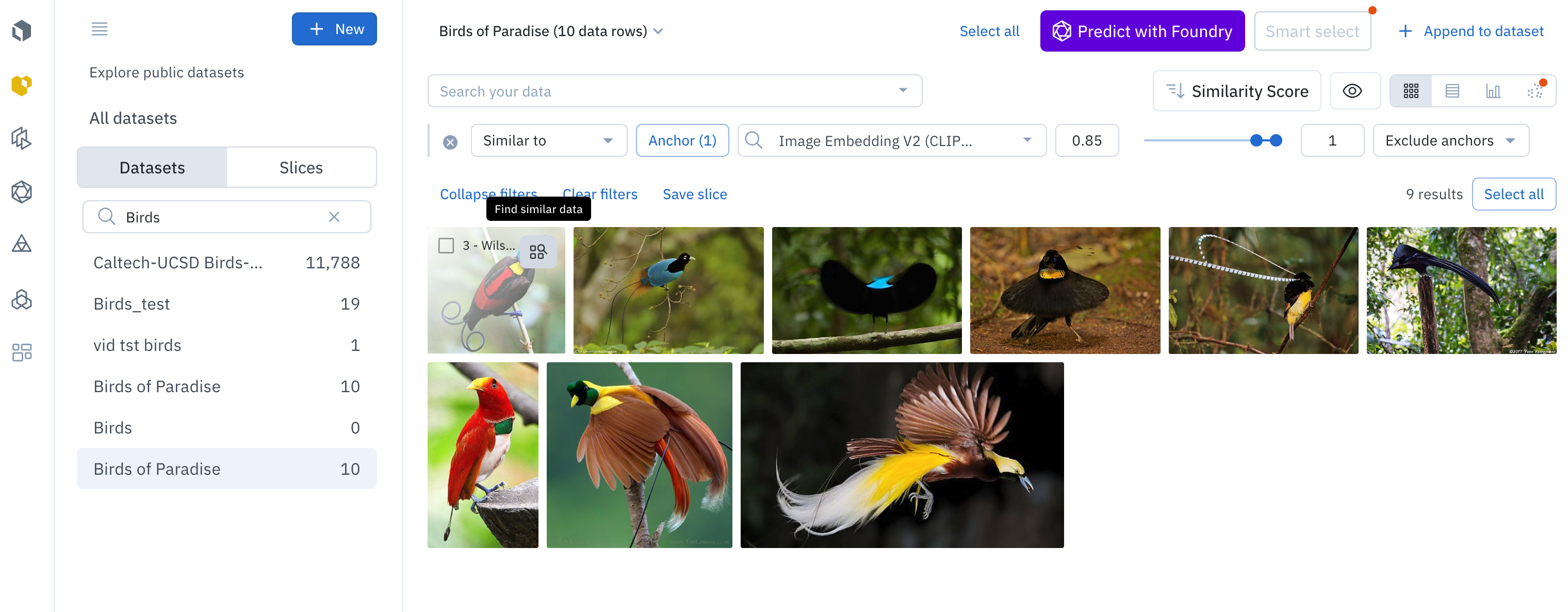 Hit **Enter** and select **Save slice**
Give the slice name and select **Save**
Copy the **Slice ID**
Hit **Enter** and select **Save slice**
Give the slice name and select **Save**
Copy the **Slice ID**
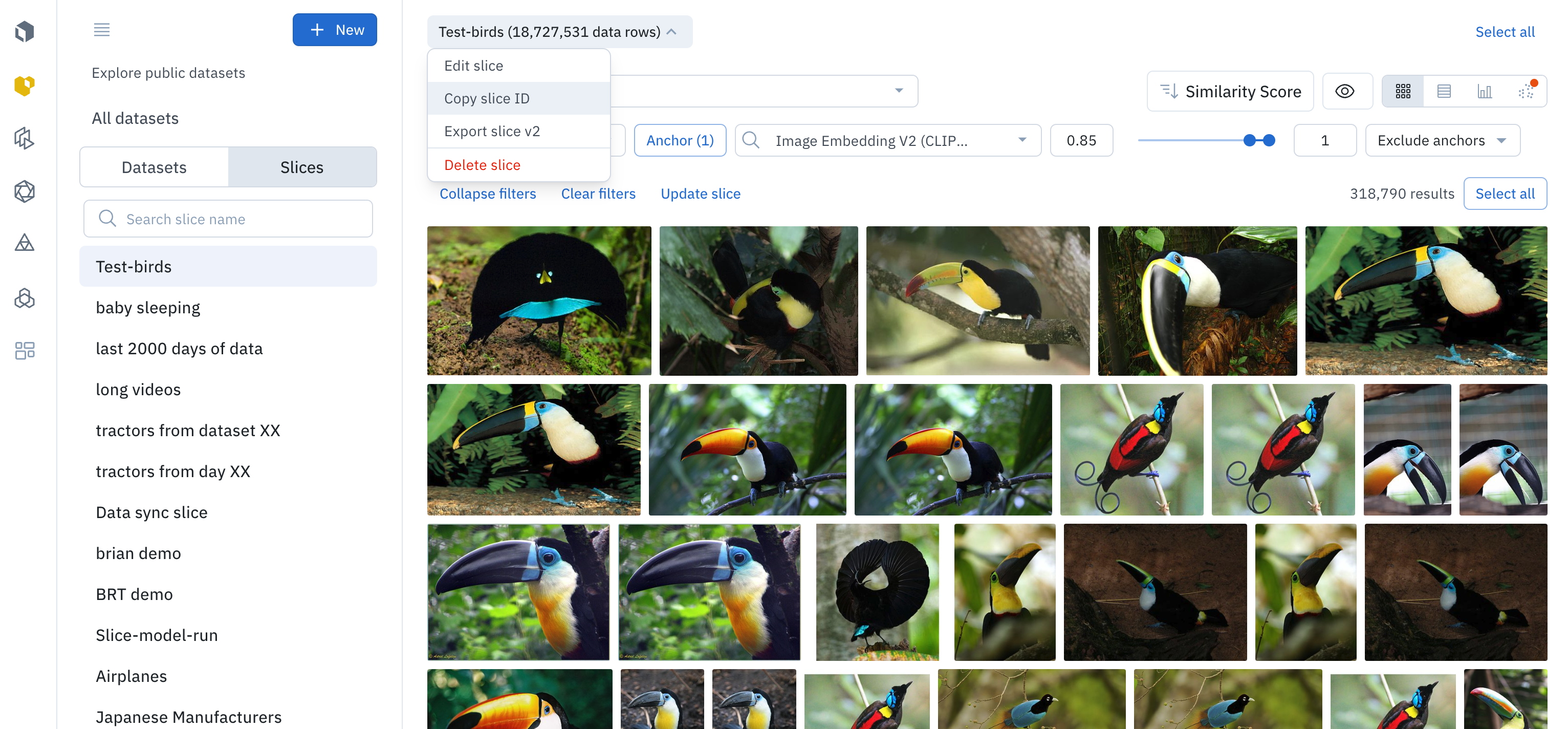 Paste **Slice ID**
```python Python theme={null}
catalog_slice_id = ""
```
### Get Catalog Slice
```python Get Catalog slices by ID theme={null}
catalog_slice = client.get_catalog_slice(catalog_slice_id)
```
```python Get Catalog slices by name theme={null}
# May return a list of slices if multiple slices have the same name
catalog_slice = client.get_catalog_slice(name="slice to search")
```
```python Get all Catalog slices theme={null}
catalog_slices = client.get_catalog_slices()
```
### Obtain Data Row IDs and Data Row objects from the Catalog slice
```python Python theme={null}
# Get a data row id
slice_data_rows_ids = catalog_slice.get_data_row_ids()
# Get a data row objects
for data_row_id in slice_data_rows_ids:
print(client.get_data_row(data_row_id))
```
### Obtain Data Row identifiers
Data row identifiers are objects that contain both the data row ID(s) and global keys.
```python Python theme={null}
data_row_identifiers = catalog_slice.get_data_row_identifiers()
drids = [dr for dr in data_row_identifiers]
# get both global keys and data row ids
# and utilize the hash method to combine both global keys and data row ids into a dictionary
for dr in drids:
print(f"Data row: {dr.id}, Global Key: {dr.global_key}, dr_gk: {dr.to_hash()}")
```
## Curate a batch from a Catalog slice via SDK
You can create a new batch from your slice or create a random sample from a slice using our Python SDK. See the Python example below to learn how to do this.
```python Python theme={null}
# Optional: sample Data rows from your Slice
sampled_data_row_ids = random.sample(slice_data_rows_ids, 5)
batch = project.create_batch(
"test batch", # name of the batch
sampled_data_row_ids, # list of Data Rows
1 # priority between 1-5
)
```
You can append data rows to your model runs for inference from your slice. See the Python example below to learn how to do this.
```python Python theme={null}
model_run.upsert_data_rows(list(slice_data_rows_ids))
```
Paste **Slice ID**
```python Python theme={null}
catalog_slice_id = ""
```
### Get Catalog Slice
```python Get Catalog slices by ID theme={null}
catalog_slice = client.get_catalog_slice(catalog_slice_id)
```
```python Get Catalog slices by name theme={null}
# May return a list of slices if multiple slices have the same name
catalog_slice = client.get_catalog_slice(name="slice to search")
```
```python Get all Catalog slices theme={null}
catalog_slices = client.get_catalog_slices()
```
### Obtain Data Row IDs and Data Row objects from the Catalog slice
```python Python theme={null}
# Get a data row id
slice_data_rows_ids = catalog_slice.get_data_row_ids()
# Get a data row objects
for data_row_id in slice_data_rows_ids:
print(client.get_data_row(data_row_id))
```
### Obtain Data Row identifiers
Data row identifiers are objects that contain both the data row ID(s) and global keys.
```python Python theme={null}
data_row_identifiers = catalog_slice.get_data_row_identifiers()
drids = [dr for dr in data_row_identifiers]
# get both global keys and data row ids
# and utilize the hash method to combine both global keys and data row ids into a dictionary
for dr in drids:
print(f"Data row: {dr.id}, Global Key: {dr.global_key}, dr_gk: {dr.to_hash()}")
```
## Curate a batch from a Catalog slice via SDK
You can create a new batch from your slice or create a random sample from a slice using our Python SDK. See the Python example below to learn how to do this.
```python Python theme={null}
# Optional: sample Data rows from your Slice
sampled_data_row_ids = random.sample(slice_data_rows_ids, 5)
batch = project.create_batch(
"test batch", # name of the batch
sampled_data_row_ids, # list of Data Rows
1 # priority between 1-5
)
```
You can append data rows to your model runs for inference from your slice. See the Python example below to learn how to do this.
```python Python theme={null}
model_run.upsert_data_rows(list(slice_data_rows_ids))
```